Customer Group
Overview of customer groups within RevCent.
The customer group is a way to organize customers for marketing, filtering and more. Customers can be manually placed in a group, or automatically placed in a group dependent on the qualifiers you set.
You can trigger Functions and integrate Customer Groups within Flows. You also have the ability to create a Third Party Trigger that will sync a customer to your MailChimp, Klaviyo, etc. email lists when a user is added/removed from a customer group.
View Customer Groups
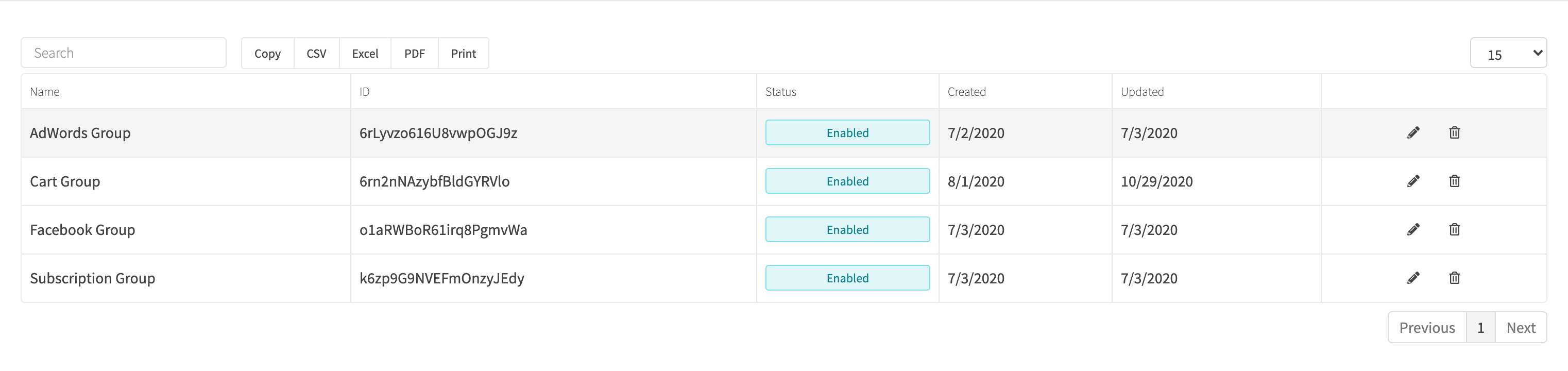
View all customer groups by clicking Tools > Customer Groups in the sidebar or go to https://revcent.com/user/customer-groups
Create A Customer Group
Create a new customer group by clicking New group when viewing all customer groups or go to https://revcent.com/user/new-customer-group. Enter its details, then click Create group.
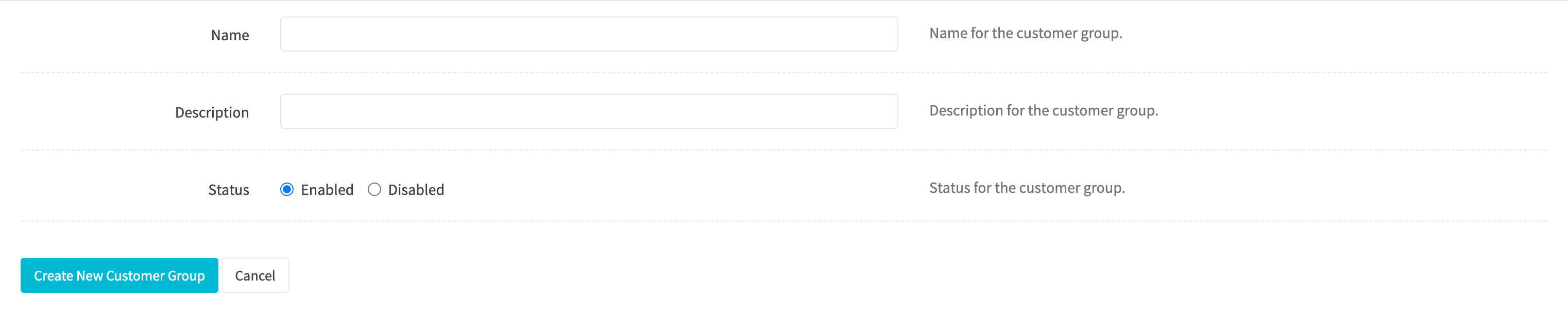
Name
Enter a name for the customer group. Required.
Description
Enter a description for the customer group.
Status
Use Enabled to set the status of the customer group.
Once the customer group is created you will be forwarded to the Edit Customer Group page for the new customer group. You can then add rules and settings for the customer group.
Edit A Customer Group
Edit an existing customer group by clicking the edit icon when viewing all customer groups. Use the Details and Qualifiers tabs to configure the group, then click Save changes.
Details
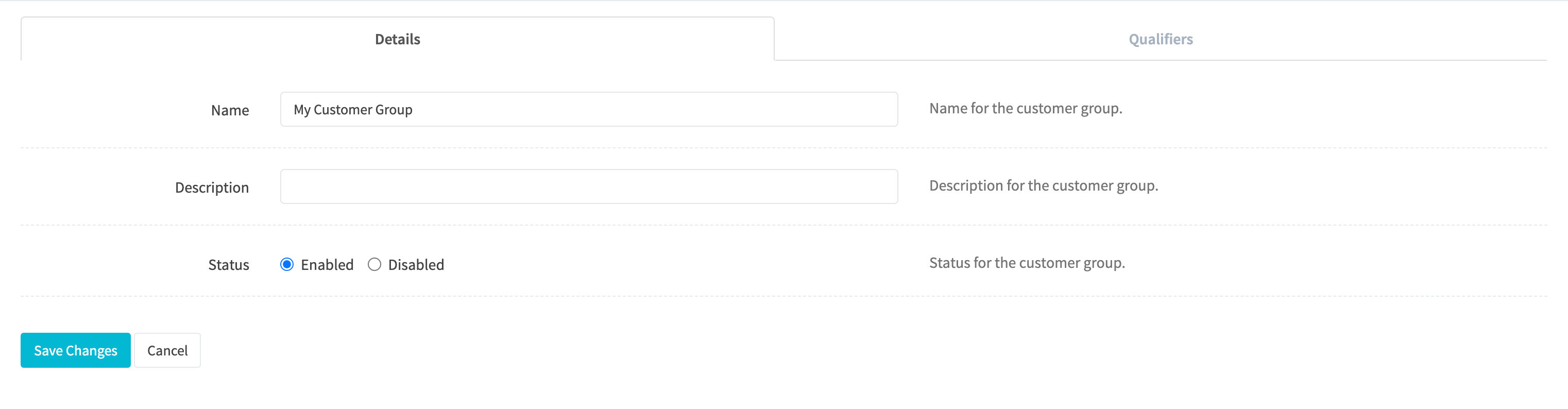
Name
Enter a name for the customer group. Required.
Description
Enter a description for the customer group.
Status
Use Enabled to set the status of the customer group.
Qualifiers
RevCent can automatically attach a group to a customer without manual intervention. This is done using qualifiers. Qualifiers are the rules that determine whether a customer has a group attached or detached. When a customer makes a new purchase, renews a subscription or receives a refund, RevCent scans your customer groups and either attaches or detaches groups based on each groups’ qualifiers compared to the individual customer.
Note: Adding or modifying your customer group(s) will affect existing customers. If you add a new group or make changes to an existing group, RevCent will process all of your existing customers at the end of the day to make sure each and every customer in your account has the appropriate groups attached and/or detached.
Qualifier Method
Select the qualifying method. Either qualify a customer based on specific values, or based on their relation to other customer groups.

Specific Values
Select one or more values specific to the customer. View Specific Values section below.
Other Customer Groups
Use other customer groups, which a customer is either in or not in to qualify for a customer group. View Other Customer Groups section below.
None
Select None if this is a group which will be used without qualifiers, i.e. manual add/remove.
Specific Values
Use values specific to the customer to qualify for the group. Several values exist enabling you to create extremely unique groups.
Important: Each specific value is optional, however at least one must be set in order for a customer to qualify for a group. Also, all specific values you enable and/or select must match for a customer to qualify for a group.
Campaign, Product Group & Shop

Campaign(s)
Select one or more campaign(s), that when an initial sale has a selected campaign(s), it associates the sales’ customer with this customer group. Optional.
Product Group(s)
Select one or more product group(s), that when a product within the product group is purchased during an initial sale, it associates the sales’ customer with this customer group. Optional.
Shop(s)
Select one or more shop(s), that when an initial sale originates from selected shops(s), it associates the sales’ customer with this customer group. Optional.
Metadata

Select one or more metadata name(s) to allow only customers that have matching name and values to qualify for the group. Leave empty to ignore metadata. Optional.
Account Age

Do you wish to qualify a customer based on the number of days since the customer was created? Enter the minimum and maximum number of days since the customer was created in order to be added to the group. I.e. customer account must be at least a minimum number of days old and at most a maximum number of days old.
No Sales

Do you wish to qualify a customer if the customer does not have any sales on record in RevCent? I.e. the customer submitted a newsletter or a signup form but never tried to purchase something.
Number of Fraud Detections

If you wish to qualify a customer based on their total number of fraud detections. Enter the minimum and maximum number of fraud detections for a customer to be added to the group.
Lifetime Chargeback

If you wish to qualify a customer based on their lifetime chargeback amount. A customers’ lifetime chargeback is the the sum of all chargebacks related to the customer. Enter the minimum and maximum lifetime chargeback amount for a customer to be added to the group. I.e. customer must have charged back at least a minimum amount and at most a maximum amount.
Number of Chargebacks

If you wish to qualify a customer based on their total number of chargebacks. Enter the minimum and maximum number of chargebacks for a customer to be added to the group.
Lifetime PayPal Disputes

If you wish to qualify a customer based on their lifetime PayPal dispute amount. A customers’ lifetime PayPal disputes is the the sum of all disputed amounts related to the customer.
Enter the minimum and maximum lifetime PayPal dispute amount for a customer to be added to the group. I.e. customer must have disputed at least a minimum amount and at most a maximum amount in PayPal.
Number of PayPal Disputes

If you wish to qualify a customer based on their total number of PayPal disputes. Enter the minimum and maximum number of PayPal disputes for a customer to be added to the group.
Lifetime Value

If you wish to qualify a customer based on their lifetime value. A customers’ lifetime value is the sum amount net, minus the sum amount refunded, for all revenue related to the customer. Enter the minimum and maximum lifetime value for a customer to be added to the group. I.e. customer must have purchased at least a minimum amount and at most a maximum amount.
Lifetime Refunded

If you wish to qualify a customer based on their lifetime refunded. A customers’ lifetime refunded is the the sum amount refunded for all revenue related to the customer. Enter the minimum and maximum lifetime refunded for a customer to be added to the group. I.e. customer must have refunded at least a minimum amount and at most a maximum amount.
Number of Sales

If you wish to qualify a customer based on their total number of sales. Enter the minimum and maximum number of sales for a customer to be added to the group.
Average Sale

If you wish to qualify a customer based on their average amount gross per sale. Enter the minimum and maximum sale average for a customer to be added to the group.
Days Since Last Sale

If you wish to qualify a customer based on the number of days since their last purchase. Useful for retargeting or segmenting dormant customers. Enter the minimum and maximum number of days since last sale for a customer to be added to the group. I.e. customer must have last purchased at least a minimum number of days ago and at most a maximum number of days ago.
Subscription Options
If you wish to qualify a customer based on subscription parameters.
Note: Enabling subscription options will disqualify customers who have never had a subscription.
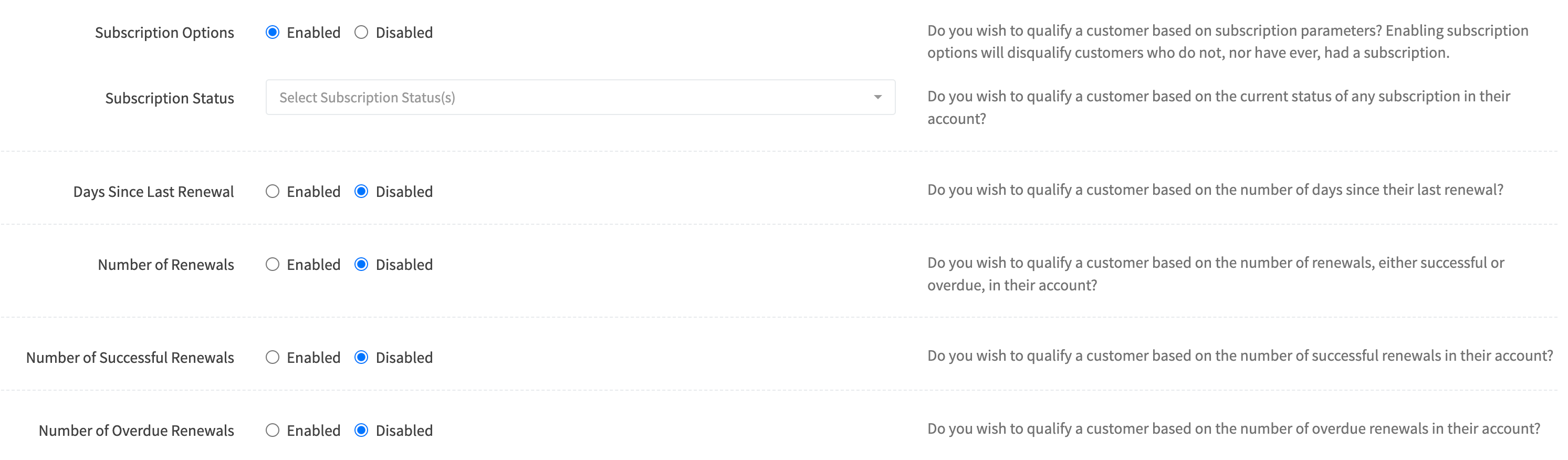
Subscription Status
Select one or more statuses to qualify a customer based on the current status of any subscription in their account.
Options:
- Active: Subscription is active.
- Overdue: Subscription is overdue.
- Occurrence Limit: Subscription has reached its maximum number of occurrences.
- Suspended: Subscription is currently suspended.
- Cancelled: Subscription is cancelled.
Days Since Last Renewal
If you wish to qualify a customer based on the number of days since their last renewal. Enter the minimum and maximum number of days since last subscription renewal for a customer to be added to the group. I.e. customers’ subscription must have last renewed at least a minimum number of days ago and at most a maximum number of days ago.
Number of Renewals
Do you wish to qualify a customer based on the number of renewals, either successful or overdue, in their account?
Number of Successful Renewals
Do you wish to qualify a customer based on the number of successful renewals in their account?
Number of Overdue Renewals
Do you wish to qualify a customer based on the number of overdue renewals in their account?
Other Customer Groups
Use other customer groups to qualify a customer for the group. This enables you to create “child” groups and then use those groups to qualify for a “parent” group. Great for even more fine tuned segmenting.
Note: You cannot use customer groups that have the “Other Customer Groups” qualifier method as a qualifying customer group. I.e. you cannot have a parent group of parent group(s).
Important: Each customer group selection is optional, however at least one must be selected in order for a customer to qualify.
In Any Customer Groups

Select one or more customer group(s) that at least one of which the customer must be in, in order to qualify for this group. Leave blank to ignore.
In All Customer Groups

Select one or more customer group(s) that all of which the customer must be in, in order to qualify for this group. Leave blank to ignore.
Not In Any Customer Groups

Select one or more customer group(s) that at least one of which the customer must not be in, in order to qualify for this group. Leave blank to ignore.