Offline Payments
Overview and details on offline payments within RevCent.
Offline payments enable you to create sales without an actual payment transaction processed by RevCent. Offline payments are typically used as a tool for creating sales without charging a customer, such as replacing damaged orders, mitigating refunds through product giveaways, etc.
- By default, an offline payment sale is treated as a “cash” sale, without the ability to refund/modify at the third party.
- RevCent has support for specific third parties, allowing you to link a third party account with the ability to refund/modify within RevCent.
View Offline Payments
View all offline payments by clicking Payments > Offline > Offline Payments in the sidebar or go to https://revcent.com/user/offline-payments
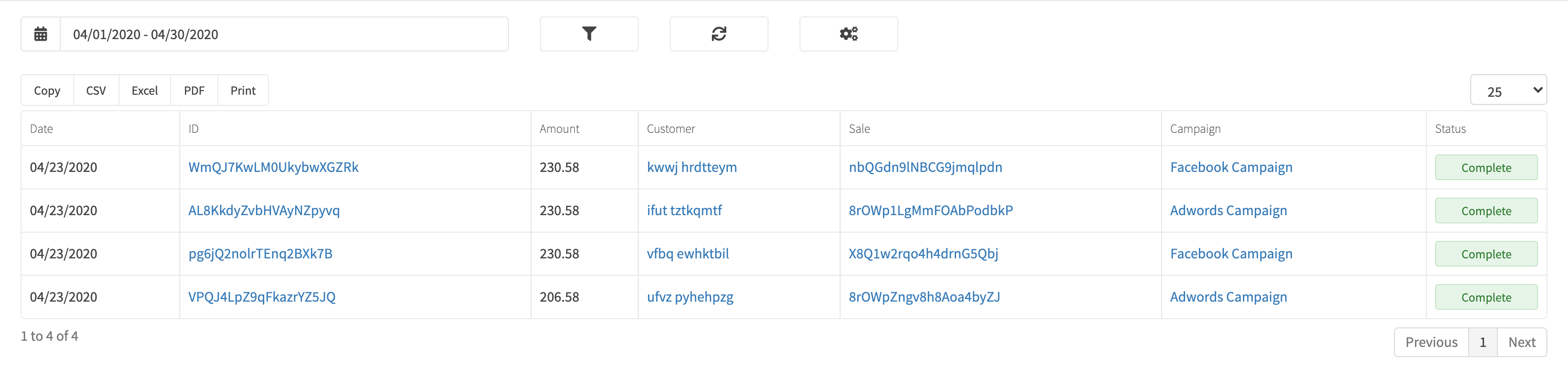
Third Party Offline Payments
You may have additional payment methods available to consumers such as AfterPay, Sezzle, etc. Since these payment methods are not processed directly by RevCent, their coinciding sales are created using Offline Payments. RevCent records these sales, allowing you to view sales coming from any payment method you offer including detailed reporting.
In order to have a supported third party payment account linked within RevCent, you must create a new third party integration specific to the third party. After creating the Third Party Integration for the specific third party, RevCent can pull information and process refunds for the third party offline payments processed outside of RevCent.
Supported Third Parties
The following third party payment solutions have native support within RevCent, allowing you to link your third party payment account with RevCent. When an order is paid using a third party listed below, RevCent will pull information specific to that payment from the third party. If you wish to refund a payment from a third party listed below, you simply refund in RevCent and not in your shops’ backend or within the third party account.
Note: Don’t see a third party you need? Let us know so we can add it to the list.
| Third Party | API Identifier | Example Transaction ID |
|---|---|---|
| Affirm | affirmpay | A1B2C3D4 |
| Afterpay | afterpay | 12345678 |
| Amazon Pay | amazonpay | P01-3004357-0502329-C710224 |
| Klarna | klarna | f3392f8b-6116-4073-ab96-e330819e2c07 |
| Sezzle | sezzlepay | 12a34bc5-6de7-890f-g123-4hi1238jk902 |
Link A Third Party Payment Account
Follow the steps below to link a third party payment account with RevCent.
1. Create A Third Party Integration
Open New integration from the third-party integrations list or go to https://revcent.com/user/new-third-party-integration. Enter a name and description, then select the provider. The provider cannot be changed after creation.
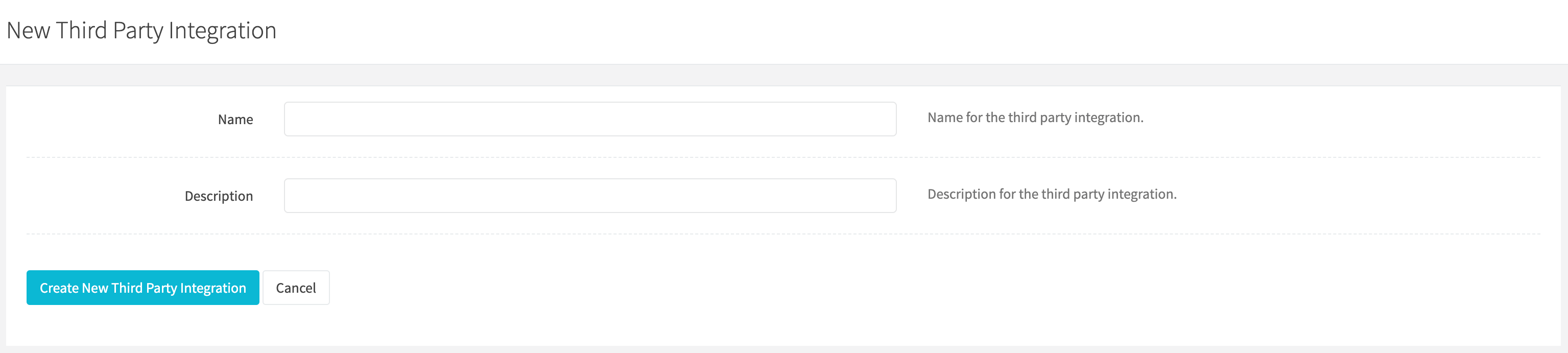
Name
Enter a name for the third party integration. Required.
Description
Enter a description for the third party integration.
Continue to the provider credentials on the same page before creating the integration.
2. Edit The Third Party Integration
Select Sezzle as the provider to display its information and credential fields. Enter the Public Key and Private Key supplied by Sezzle. These fields are available during creation; you do not need to create an empty integration first. To change an existing integration, open its edit page from the integrations list.
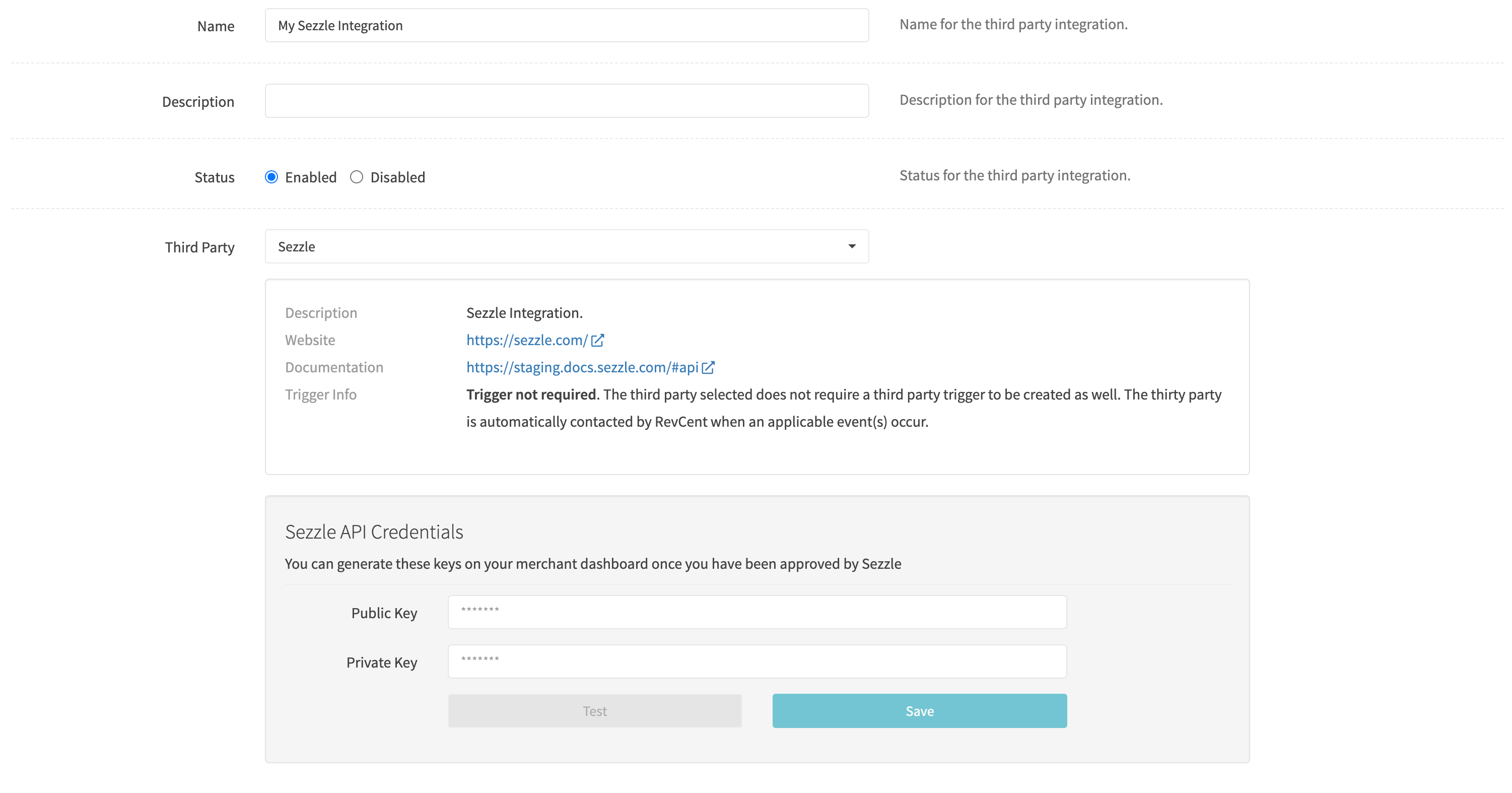
Name
Enter a name for the third party integration. Required.
Description
Enter a description for the third party integration.
Status
Set the status for the third party integration.
Third Party
Select the provider when creating the integration. Each provider requires its own credentials. An existing integration’s provider cannot be changed.
Saving Third Party Credentials
Enter the required keys in the provider’s credential fields. The creation form saves them together with the integration.
3. Save Changes
Click Create integration for a new integration, or Save changes when editing an existing one.
4. Additional Steps
Follow the steps in the sections below depending on the method in which you send sales into RevCent, either via Third Party Shop or API.
Third Party Shop
If you are using the RevCent plugin in a WooCommerce store, the next step is to associate the third party integration with a payment method in your store. Edit an existing third party shop by clicking the edit icon when viewing all third party shops. View all shops by clicking Integrations > Shops in the sidebar, or go to https://revcent.com/user/shops
1. Import Additional Payment Methods
Once editing the shop, open Additional payment methods. Click Import from shop to retrieve the shop’s payment methods, or Add method to enter one manually. Review the shop ID, name, title, and descriptions. Use Remove for a method you do not want to map.
In the example below there is a payment method called Sezzle. Since this is a supported third party and you linked it with RevCent, you would select the integration in the dropdown.

2. Link The Payment Method and Integration
In the example below, we selected the My Sezzle Integration for the Sezzle payment method. This tells RevCent that orders that come from this third party shop, paid using Sezzle, are from the specific Sezzle account linked via the third party integration My Sezzle Integration that was created.
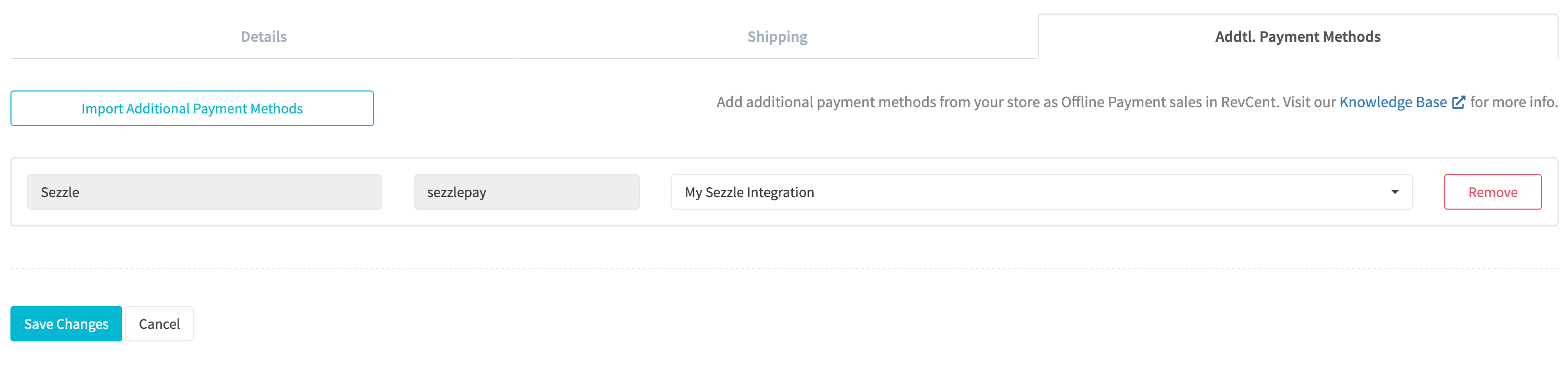
3. Save Changes
Click the Save Changes button. Congratulations, your shops’ payment methods are now linked in RevCent and associated with the respective third party. Sales that come in using the third party payment method(s) will have additional information and capabilities.
API
If you are using the API to send sales directly into RevCent, and not WooCommerce, you will need to provide RevCent with information pertaining to payment. This information is then provided in the sale request metadata using three specific name value pairs. RevCent will detect the three values in the request metadata and make the correct associations.
Third Party Values
The following information must be supplied in the API call in order for RevCent to link the sale with the appropriate third party payment. This includes the third party integration ID, third party transaction ID and third party name. The three values should be contained within the sale request metadata.
1. Third Party Integration ID
The offline_payment_third_party_integration_id metadata value is the RevCent ID of the third party integration, which can be found when viewing all third party integrations. View your third party integrations by clicking Integrations > Third Party > Integrations in the sidebar, or go to https://revcent.com/user/third-party-integrations
Metadata Object Example:
{
    "name": "offline_payment_third_party_integration_id",
    "value": "ABCDEFGHIJKLMNOPQRST" // The RevCent ID for the third party integration.
}
2. Third Party Transaction ID
The offline_payment_third_party_transaction_id metadata value is the transaction/order ID provided by the third party after successful payment.
Metadata Object Example:
{
    "name": "offline_payment_third_party_transaction_id",
    "value": "1234567" // The transaction/order ID provided by the third party after successful payment.
}
3. Third Party
The offline_payment_third_party metadata entry corresponds to the API Identifier in the Supported Third Parties table.
Metadata Object Example:
{
    "name": "offline_payment_third_party",
    "value": "sezzlepay" // The API Identifier of the the third party.
}
Request Metadata
You will provide all three entries, offline_payment_third_party_integration_id, offline_payment_third_party_transaction_id and offline_payment_third_party within the metadata array of the sale API request.
Note: This is a partial sale request that shows only the payment_type and metadata fields. Include the additional fields required by the current sale schema in your complete request.
Example sale request with metadata:
{
    "payment_type": "offline_payment",
    "metadata": [
        {
            "name": "offline_payment_third_party_integration_id",
            "value": "REVCENT_THIRD_PARTY_INTEGRATION_ID"
        },
        {
            "name": "offline_payment_third_party_transaction_id",
            "value": "12345678"
        },
        {
            "name": "offline_payment_third_party",
            "value": "sezzlepay"
        }
    ]
}