BIN Profile
Overview and details on BIN profiles within RevCent.
A BIN profile allows you to route payments to specific gateways based on the first digits of a customer’s card number. BIN profiles only apply to transactions that are run via a Payment Profile. Add individual BINs or ranges in the BIN entries table.
Why Use A BIN Profile?
- Increase payment acceptance based on issuing institution BIN.
- Reduce declines when 3DS is not supported by an institution.
- RevCent routes the request when using a Payment Profile
- Create as many BIN Profiles as you want.
View BIN Profiles
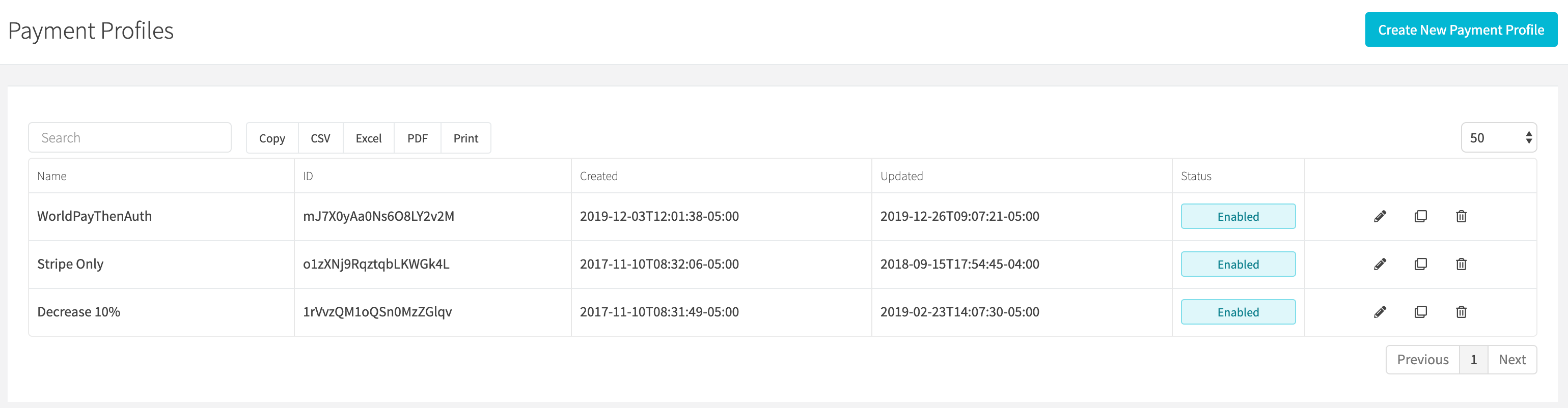
View all BIN profiles by clicking the Payments > Credit Card > BIN Profiles link on the sidebar or going to https://revcent.com/user/bin-profiles
Create A BIN Profile
Click New profile when viewing BIN profiles or go to New BIN profile. Enter the profile details and BIN entries, then click Create profile.
Basic Fields

Name
Enter a name for the BIN profile. Required.
Description
Enter a description for the BIN profile.
Status
Use the Enabled switch to set the profile’s status.
Edit A BIN Profile
Click the pencil icon beside a BIN profile to edit it. Click Save changes after updating its details or BIN entries.
Details

Name
Enter a name for the BIN profile. Required.
Description
Enter a description for the BIN profile.
Status
Set the status of the BIN profile.
BIN Table
The current web editor has one BIN or range field per row. Click Add row to add an entry, or the trash icon beside a row to remove it from the unsaved form. For example, 411111 matches one six-digit BIN and 411111-411120 creates an inclusive range. Click Save changes to apply your entries.
API BIN fields
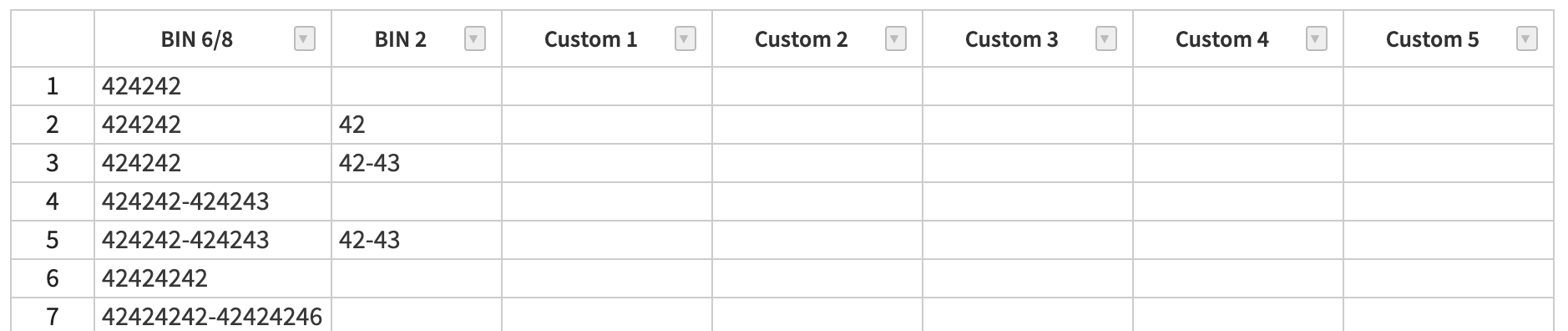
The API also supports the BIN 6/8, BIN 2, and custom fields described below. These are not separate columns in the current web editor.
BIN 6/8
Enter an individual or ranged BIN 6 or BIN 8 value.
- Entries must be exactly six or eight digits.
- Ranged values must be in the form of LOWEST-HIGHEST.
- Range difference cannot exceed 5000.
BIN 2
If you entered an individual or ranged BIN 6 in the first column, you can provide an additional two digits, either as an individual number or range. If BIN 2 is present, the BIN 6 is converted into a BIN 8, disposing the BIN 6 variant for that row.
- BIN 2 entries must be exactly two digits.
- You cannot enter a BIN 8 in the first column and include a value in BIN 2, as this would generate a 10 digit BIN.
Custom X
Use the custom columns to include additional information for each bin row.
BIN Examples
The table below shows the BINs generated based on the individual or ranged entries for BIN 6/8 and BIN 2. Invalid entries will result in an error.
| BIN 6/8 | BIN 2 | Generated BIN(s) | Explained |
|---|---|---|---|
| 424242 | 424242 | Individual BIN 6. | |
| 424242 | 42 | 42424242 |
BIN 6 + BIN 2 results in individual BIN 8. The BIN 6 value is not saved. |
| 424242 | 42-43 |
42424242 42424243 |
BIN 6 + BIN 2 range generates two unique BIN 8 values. The BIN 6 value is not saved. |
| 424242-424243 |
424242 424243 |
BIN 6 range generates two unique BIN 6 values. | |
| 424242-424243 | 42-43 |
42424242 42424243 42424342 42424343 |
BIN 6 range + BIN 2 range generates four unique BIN 8 values. The BIN 6 ranged values are not saved. |
| 42424242 | 42424242 | Individual BIN 8. | |
| 42424242-42424244 |
42424242 42424243 42424244 |
BIN 8 range generates three unique BIN 8 values. | |
| 4242 | INVALID | Column BIN 6/8 must be exactly six or eight digits. | |
| 424242 | 424 | INVALID | Column BIN 2 must be exactly two digits. |
| 42424242 | 42 | INVALID | Results in 10 Digit BIN. |
| 42000000-44000000 | INVALID | Range difference cannot exceed 5000. |