Third Party Shop
Overview and details on linking third party shops within RevCent
A third party shop within RevCent allows you to process payments for sales using third party shopping carts, and manage those sales within RevCent. This is extremely helpful for importing products, and synchronizing your orders with RevCent’s backend.
For a WooCommerce shop, follow the WooCommerce Installation guide.
Third Party Shops vs RevCent Sites
Third Party Shops are external ecommerce stores connected to RevCent. For example, a WooCommerce store hosted on WordPress is a Third Party Shop.
RevCent Sites are different. A RevCent Site is an AI-developed ecommerce storefront, cart, or lander hosted by RevCent. Sites are an AI-only feature and are customized through the Site repository using AI, not through a RevCent web app visual builder.
Use this simple distinction:
Third Party Shop = external ecommerce store connected to RevCent
RevCent Site = AI-developed, RevCent-hosted ecommerce experience
Shops, Third Party Shops, User Shops, and Site Shops are separate from RevCent Sites. Do not use Shop settings or Shop operations to manage a RevCent Site.
View Shops
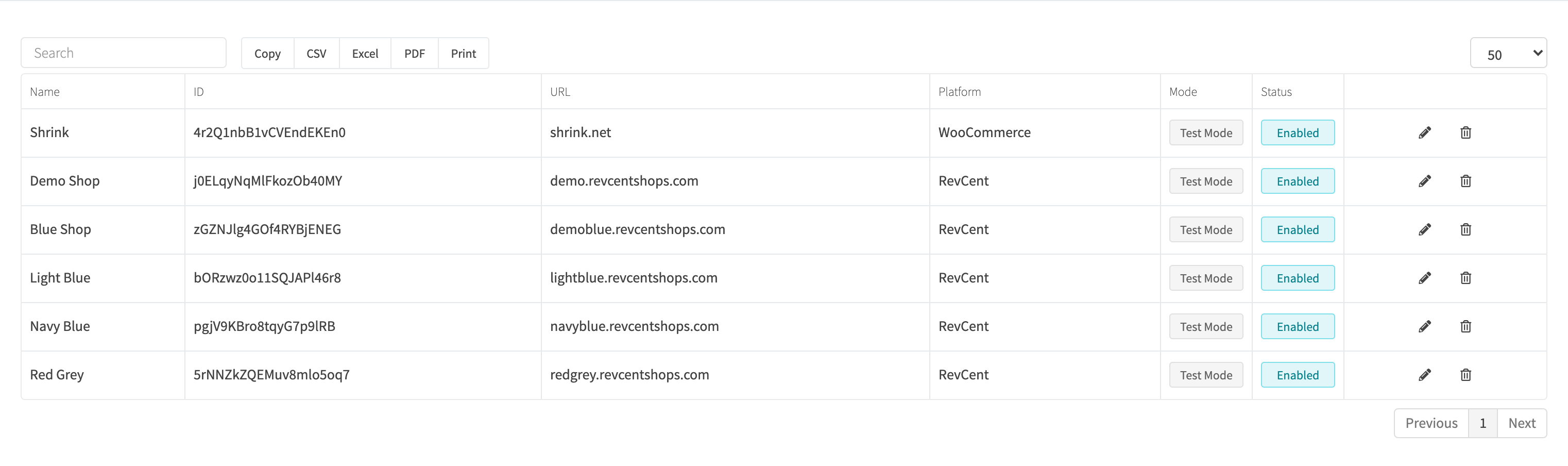
View all shops by clicking Integrations > Shops in the sidebar, or go to https://revcent.com/user/shops.
Create A Third Party Shop
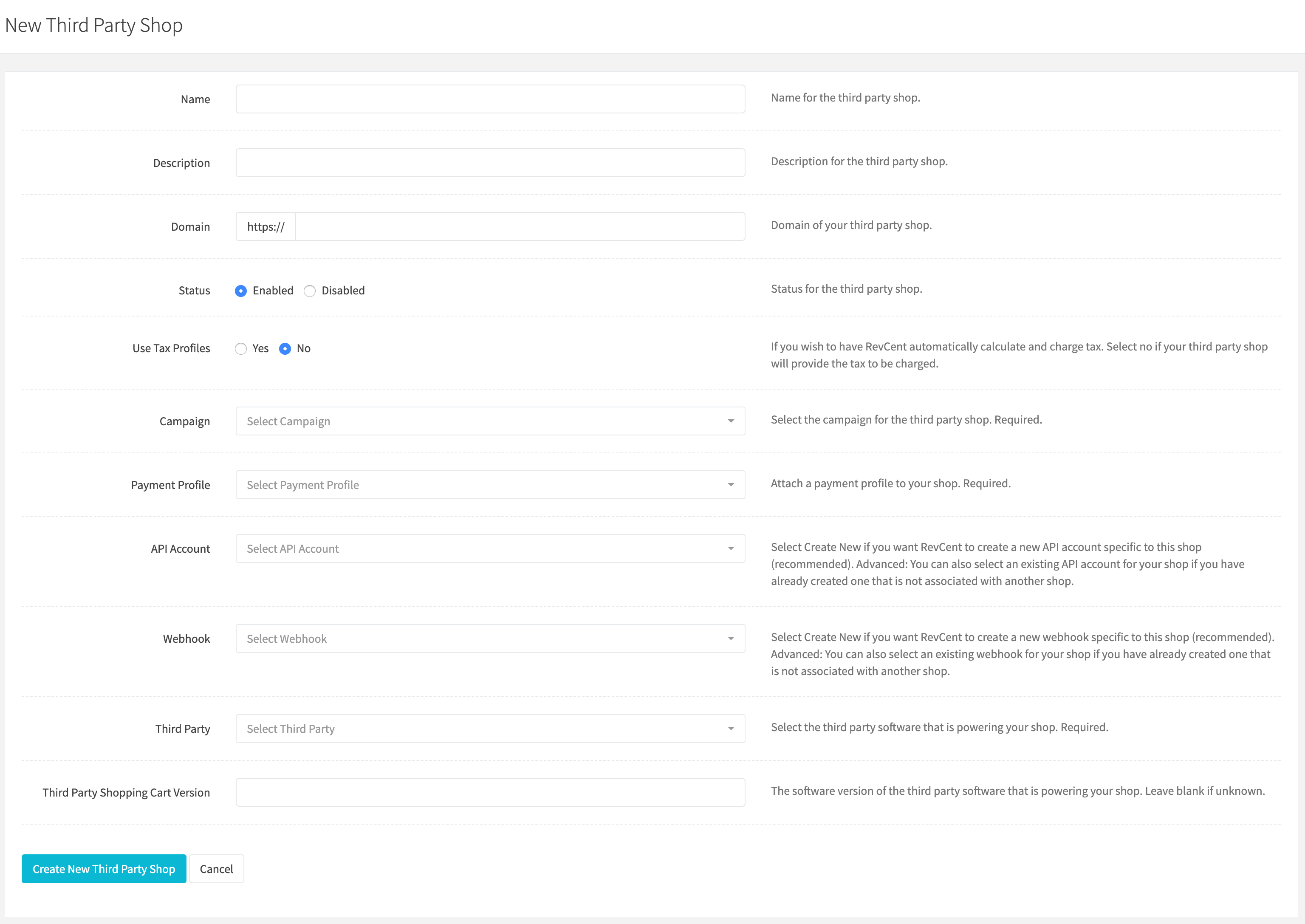
Create a new third party shop by clicking the New shop button when viewing all shops, or go to https://revcent.com/user/new-third-party-shop.
Important: If you are creating a third party shop for WooCommerce please follow the WooCommerce Installation guide.
Name
Set a name for the third party shop. Required.
Description
Set a description for the third party shop. Optional.
Domain
Enter the domain of your third party shop. i.e. ‘myshop.com’ or ‘myshop.com/store’.
Status
Set the status of your third party shop. Default is enabled.
Mode
Choose Test or Live for sales from this shop.
Campaign
Attach a campaign to your shop. Required.
Payment Profile
Attach a payment profile to your shop. Required.
Platform and Credentials
Select the shop platform and its API/software version. Enter the required credentials under Credentials, then click Create shop. For WooCommerce, follow the installation guide linked above.
Edit A Third Party Shop
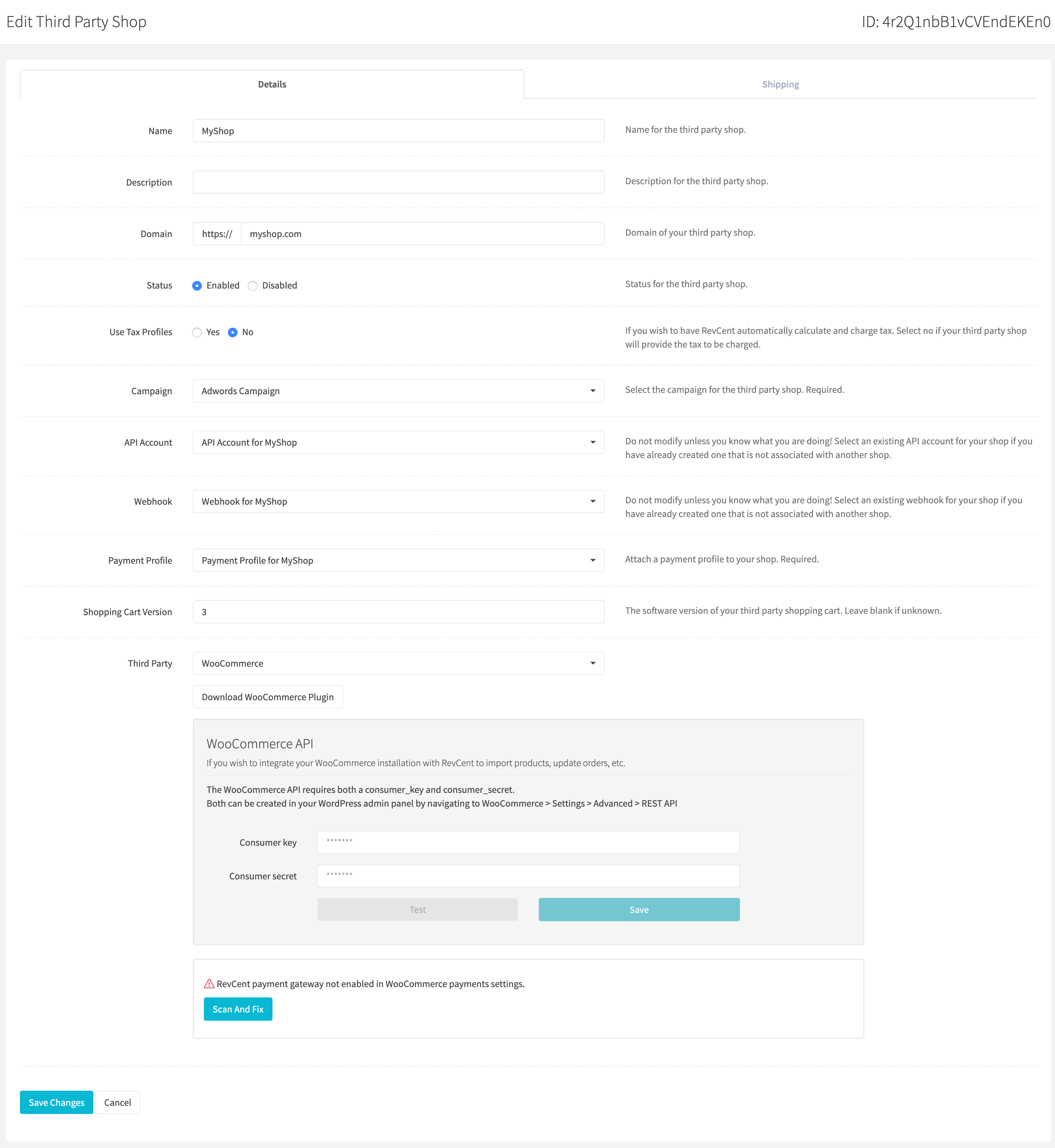
Edit an existing third party shop by clicking the edit icon when viewing all third party shops.
Third Party Shop Details
Name
Set a name for the third party shop. Required.
Description
Set a description for the third party shop. Optional.
Domain
Enter the domain of your third party shop. i.e. ‘myshop.com’ or ‘myshop.com/store’.
Status
Set the status of your third party shop. Default is enabled.
Campaign and Payment Profile
Select the campaign and payment profile used for this shop. The Details tab also includes the platform and platform version. Manage saved connection credentials in the Credentials tab, then click Save changes when ready.
Import or Add Shipping
If you are selling shippable products on your store it is necessary to remotely import your store’s shipping methods. Your RevCent Third Party Shop must already be able to connect to your store in order to import methods.
When an order request is sent to RevCent containing shippable products, RevCent needs to match the shipping method from your store with the appropriate method within RevCent. This is to enable shipment tracking and an enhanced customer experience.

Shipping Method
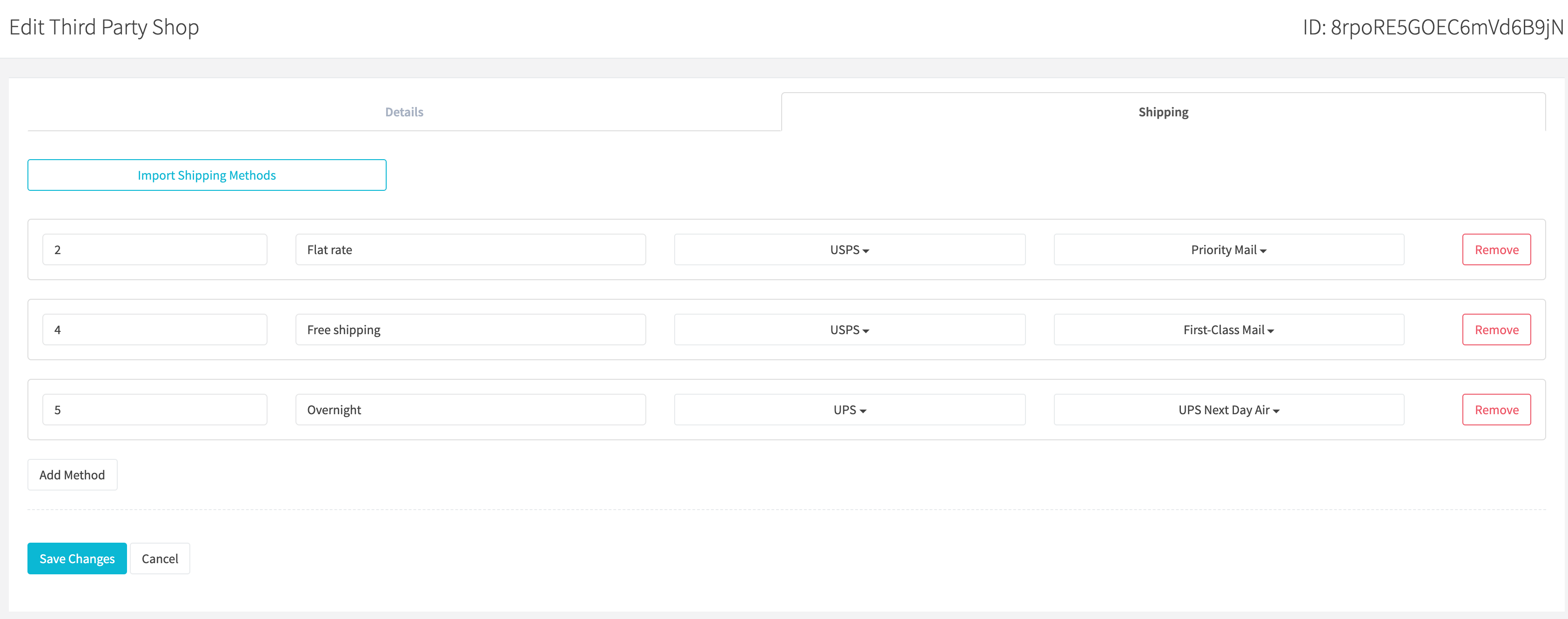
Each shipping method has an ID, name, provider and provider method. RevCent uses the ID to assign the appropriate provider and provider method when a shipment is submitted in a third party shop sale. View our shipping provider method table to match provider and options within the dropdown.

ID
The ID for the shipping method, this must match the ID in your remote store. RevCent will automatically enter the ID when importing methods.
Name
The Name for the shipping method. RevCent will automatically add the name when importing methods.
Provider
The shipping provider. Options are USPS, UPS and FedEx.
Provider Method
Depending on the shipping provider selected, select the appropriate provider method.
Import Shipping Methods
Click Import from shop in the Shipping tab to have RevCent connect to your shop and import shipping methods. RevCent displays the ID and name of each method it finds. Set the provider and provider method for each imported method to match your store’s methods with RevCent’s shipping services. View our shipping provider method table to match provider and options within the dropdown.
Manually Add A Method
Click the Add method button to manually add a shipping method. You can then manually set the ID, name, provider and provider method for the shipping method. Remember, when manually adding a method, the ID must match the ID in your remote store. View our shipping provider method table to match provider and options within the dropdown.
Additional Payment Methods
RevCent natively processes credit card, PayPal, check and COD sales from your WooCommerce store. However, you may have additional payment methods available to consumers such as AfterPay, Sezzle, Bitcoin, etc.
These types of additional payment methods can be included in RevCent as Offline Payment sales. This enables you to view sales coming from any payment method you offer on your WooCommerce store.
- By default, an offline payment sale is treated as a “cash” sale, without the ability to refund/modify at the third party.
- RevCent has support for specific third parties, allowing you to link a third party account with the ability to refund/modify at the third party.
Import Additional Payment Methods
Click Import from shop in the Additional payment methods tab to have RevCent connect to your shop and import third party payment methods. RevCent displays the methods it finds. Click Remove beside any method you want RevCent to ignore, then save your changes.

The example shows Sezzle mapped to My Sezzle Integration. This tells RevCent which linked account handles those payments. See linking a third party payment account.
For an unlinked method such as Direct bank transfer, leave the integration unselected. Those orders are treated as cash offline payments.