Third Party Integration
Overview and details on third party integrations.
Third Party Integration
An integration is the actual link with RevCent and your third party account. Used in combination with a Trigger, you can have entities created in your third party account.
New: Check out our RevCent Functions tool which allows much greater flexibility and can integrate with any third party.
Why Use A Third Party Integration?
- Add a new customer to a MailChimp email list when a sale is created.
- Create an invoice in a specific Xero business account.
- Send a message to a custom webhook.
- Create as many integrations as you want.
View Third Party Integrations
View your third party integrations by clicking Integrations > Third Party > Integrations in the sidebar, or go to https://revcent.com/user/third-party-integrations
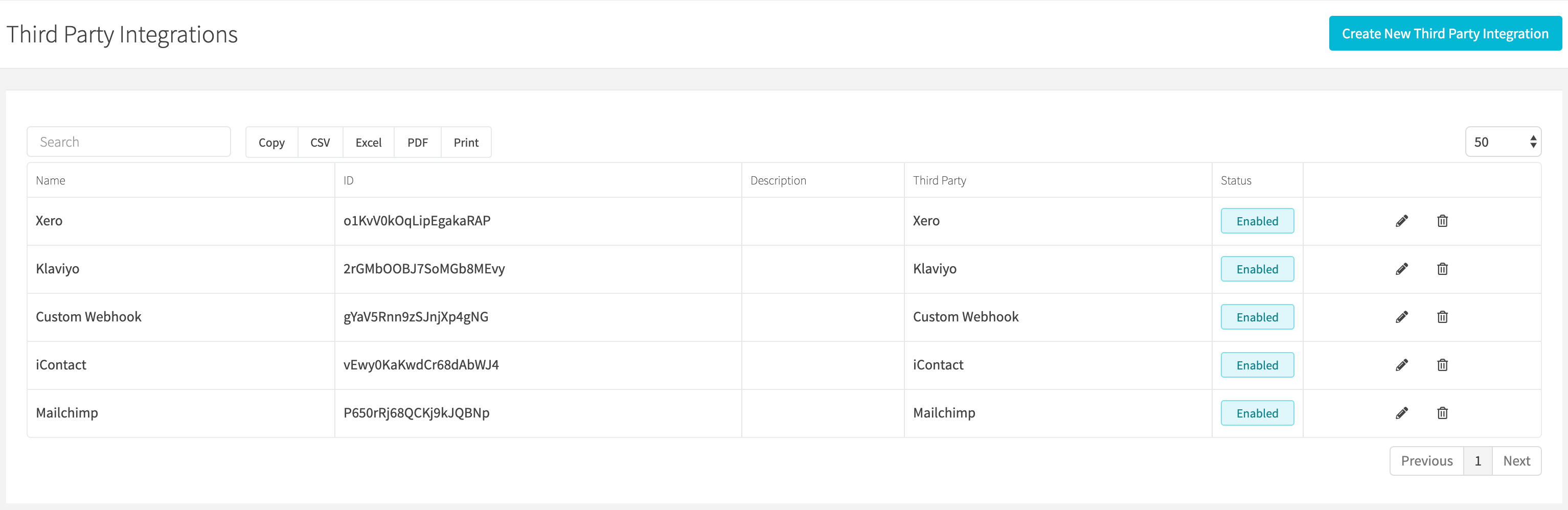
Create A Third Party Integration
Create an integration with New integration from the list, or open New third-party integration. Select the provider when creating it.
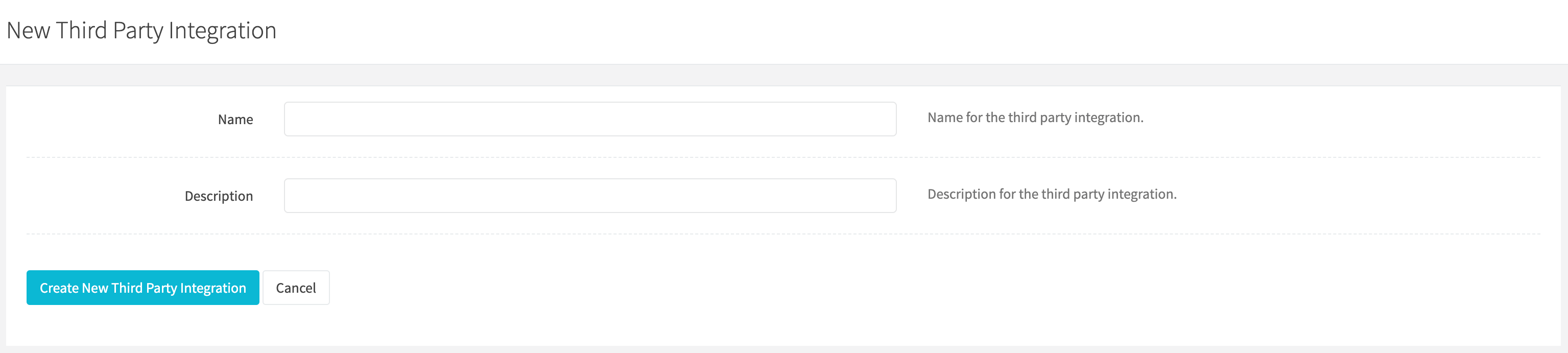
Name
Enter a name for the third party integration. Required.
Description
Enter a description for the third party integration.
After creation, the integration editor opens. The provider is fixed; enter or replace its credentials in the Credentials tab. Continue to the Edit A Third Party Integration section below.
Edit A Third Party Integration
Edit an existing third party integration by clicking the edit icon when viewing all third party integrations.
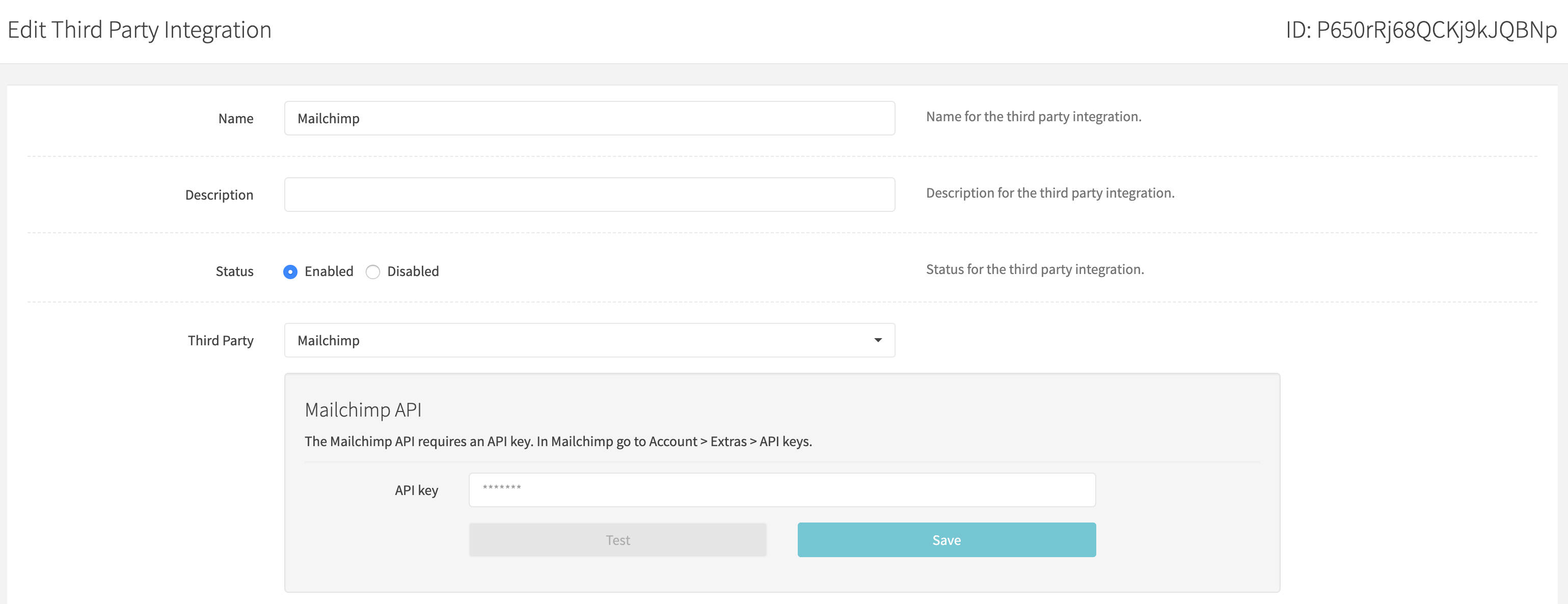
Name
Enter a name for the third party integration. Required.
Description
Enter a description for the third party integration.
Status
Set the status for the third party integration.
Third Party
The provider is fixed after creation. Its Credentials panel lists the credentials needed to link the service.
Example: In the image above we have selected MailChimp as the third party. MailChimp requires an API key in order to link RevCent. You will need to enter the MailChimp API key.
Saving Third Party Credentials
- Enter the required credentials in the provider’s Credentials panel.
- Use the credential save action; an already configured provider shows Replace credentials. Saved values remain masked.
- Use Save changes for integration details and provider options.
- Continue to the Specific Fields section below.
Specific Fields
This is the important part. Some third parties require specific fields in order for the integration to fully work. Depending on the required fields, RevCent will display form fields for you to select.
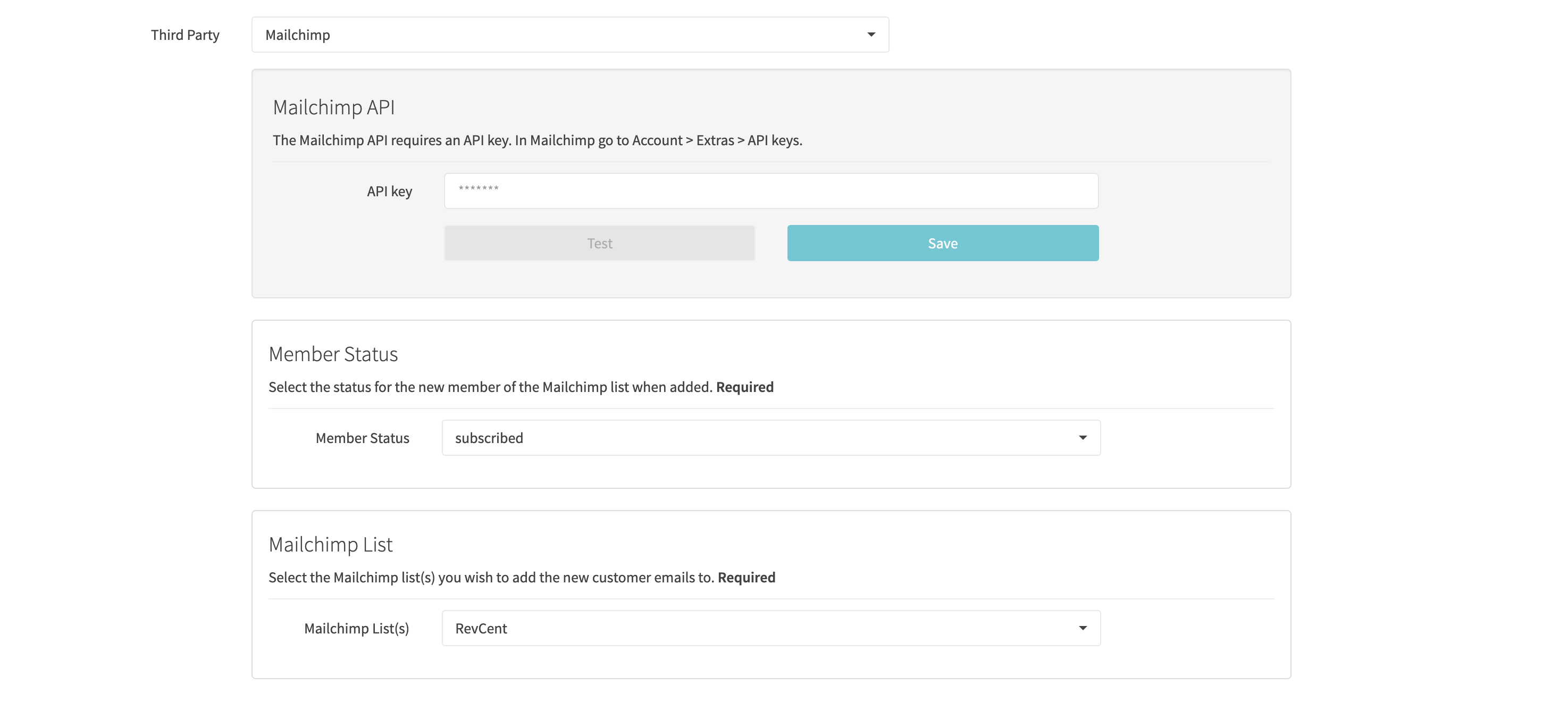
Mailchimp requires a list, a list method, and a member status. Required fields must be completed. The example shows the current options layout with controls disabled because provider options could not load. If this happens, check the integration’s credentials and use Reload provider options before editing.
Saving Specific Fields
- Select each required field for the third party.
- Click the Save Changes button at the bottom of the Edit Third Party Integration page.
- Congratulations, your integration is now complete.
Integration Set Up Complete
Now that you have linked the third party and selected any required fields, continue to the Trigger section for setting up a trigger that will use the integration.
Trigger
A trigger is a combination of an event, Third Party Integration and optional Campaign filters.
Third Party Integration Required
In order to utilize a trigger you must have at least one Third Party Integration.
How Does A Trigger Work?
- You create a trigger with an event and a third party integration.
- When the event occurs, the trigger is fired.
- The trigger refers to the integration and proceeds accordingly.
- Depending on the event and the integration, RevCent will create the required entities in the third party.
- Optional Campaign Filters can be set to ensure only specific events with matching RevCent campaign(s) fire the trigger.
Supported Trigger Events
- New Customer: A customer is created in your account, either by a new sale, new customer signup, etc.
- Customer Added or Removed From Group: A customer is added or removed from a customer group. Useful for syncing with email marketing.
- Sale Created: A new sale is created in your account and payment was either successful or unsuccessful.
- Subscription Renewal Success: A new subscription renewal is created in your account and payment was successful.
- Subscription Renewal Fail: A new subscription renewal is created in your account and payment was unsuccessful.
- Trial Expired Success: A trial has expired and payment was successful.
- Trial Expired Fail: A trial has expired and payment was unsuccessful.
- Usage Account Charge Success: A usage account was successfully charged at the end of the billing period.
- Usage Account Charge Fail: A usage account was unsuccessfully charged at the end of the billing period.
- Salvage Transaction Success: A salvage transaction has been successfully processed and payment was successful.
- Refund Created: A pending refund was created.
View Triggers
The current web app does not expose the legacy third-party trigger list or editor. Contact RevCent for help managing an integration that requires one. For new event-driven integrations, see RevCent Functions.
Create A Trigger
The former Create New Trigger screen is unavailable in the current web app. The supported event concepts above still describe how existing triggers operate.
Edit A Trigger
Contact RevCent to review an existing third-party trigger’s event, integration, campaign filters, or customer-group filters.