Chargebacks
Overview and details on credit card chargebacks within RevCent.
A chargeback in RevCent can be created automatically, manually or via the API. A chargeback is specific to a credit card transaction within RevCent.
View Chargebacks
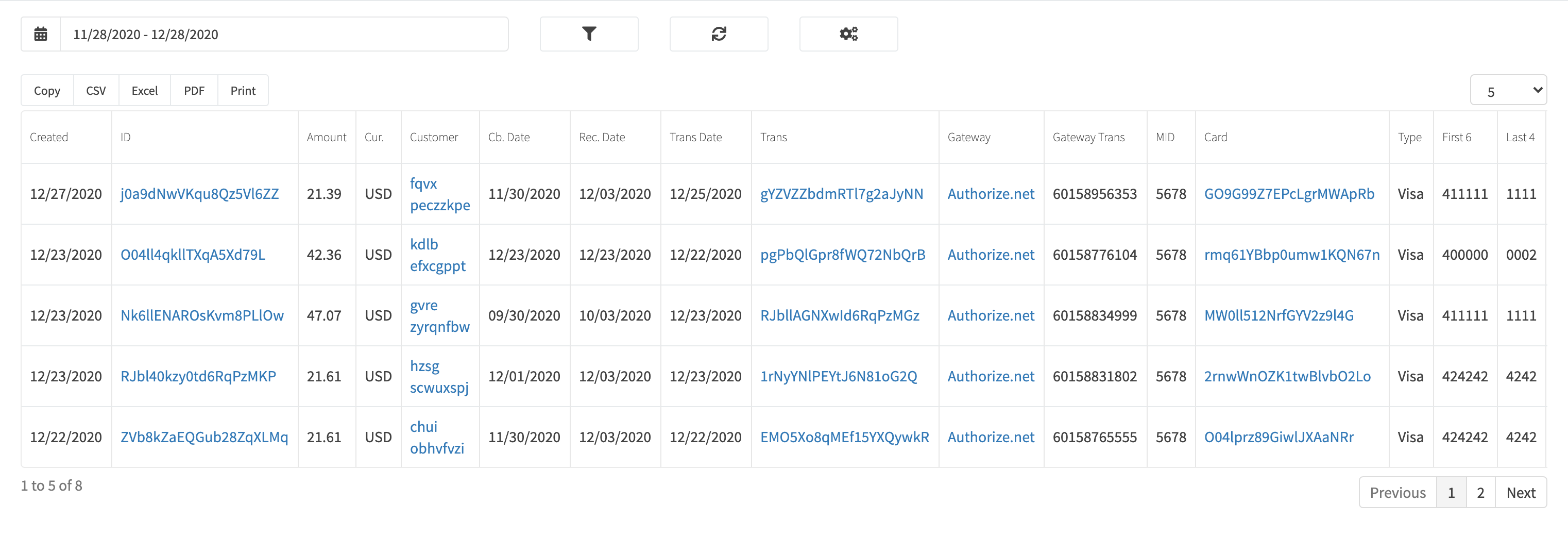
View all chargebacks by clicking Payments > Credit Card > Chargebacks in the sidebar or go to https://revcent.com/user/chargebacks
Create/Edit A Chargeback
View a chargebacks’ details by searching for the chargeback in the top navigation search box, or clicking on the chargeback ID when viewing all chargebacks.
The chargeback details page will display all related entities related to the chargeback, i.e. sale, products sold, shipping, tax, subscriptions, etc.
Create A Chargeback
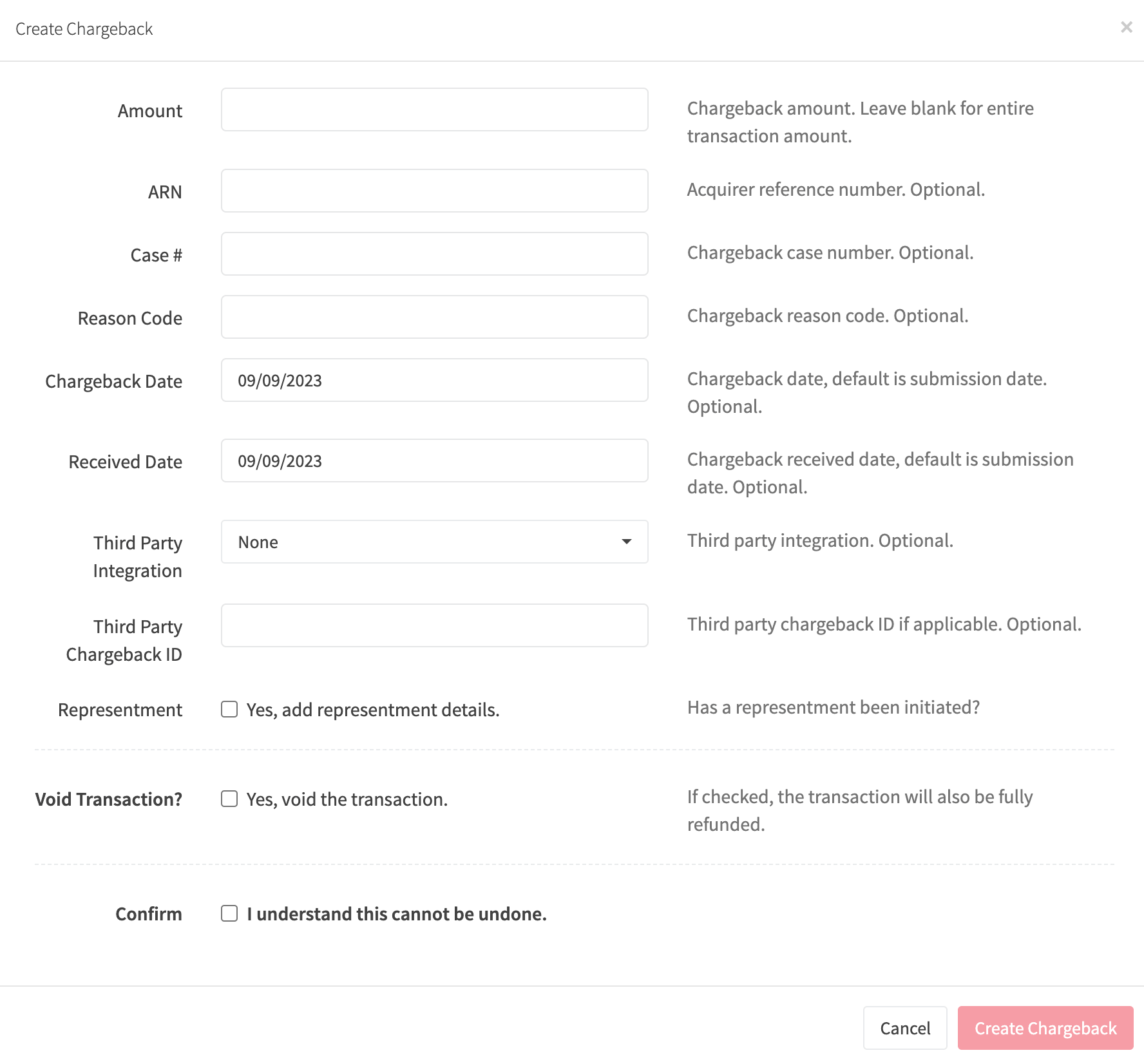
In the RevCent web app, you can manually create a chargeback. You must view the transaction details for the specific transaction that the chargeback is related to. When viewing the source transaction details page, click the red Chargeback button and complete the form fields.
Edit A Chargeback
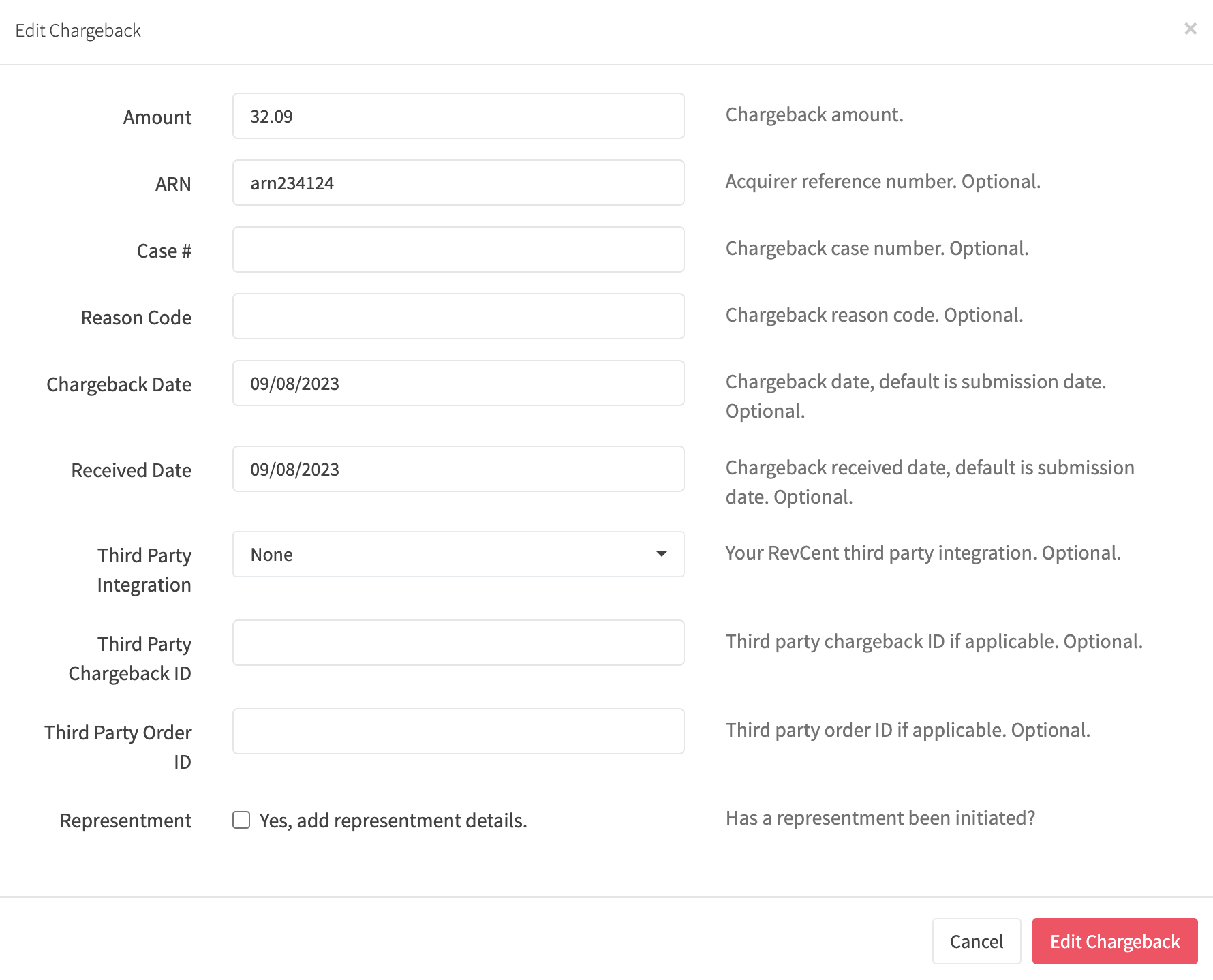
Click Edit in the chargeback’s Tools section. Complete the fields and click Save Changes.
Representment Fields
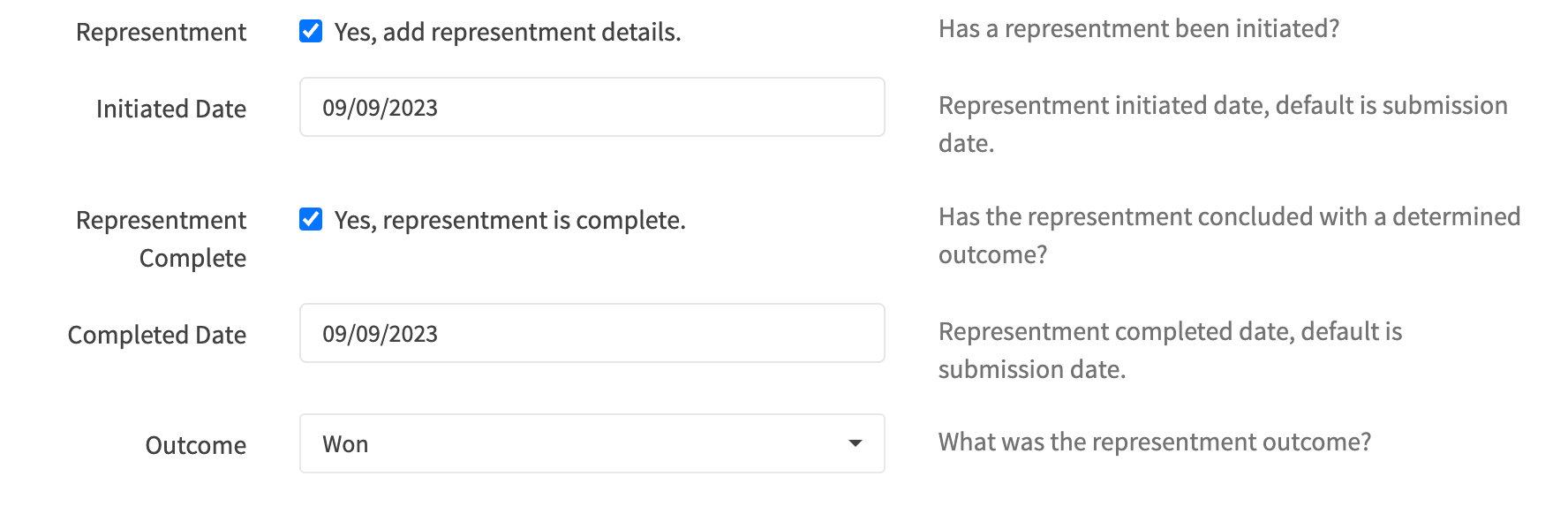
You can add representment details when creating or editing a chargeback. Enable Representment and complete the applicable fields. For an initiated representment, enable Representment Complete to enter its completion date and outcome. An already initiated representment cannot be switched off in the edit form.
For Third Parties
If you are a third party and wish to integrate your system with RevCent, there are a few ways to do it. You can either manually log into RevCent to create and manage chargebacks, or you can have an automated integration.
Automated Chargeback Management
Read more about Automated Chargeback Management if you wish to integrate your service with RevCent in an automated fashion.