Conversion Tracking
Overview and details on how to track conversions in RevCent.
Track conversions successfully, regardless of search engine, marketing channel, affiliates, etc. It doesn’t matter if you are using a single domain, or are using a multi-domain sales funnel. RevCent can keep track of the originating visitor, give the visitor a unique ID, attribute metadata and click data to the visitor and ultimately to the sale.
RevCent Track.js
This all works using the RevCent Track.js visitor tracking system. By inserting our javascript code snippet immediately before the closing </body> tag on every page of your domain(s), RevCent can track across all of your domains, even if they leave and come back later. The first time a visitor is recognized as unique, i.e. having no existing RevCent tracking ID cookie, they are automatically given a unique ID by RevCent Track.js. This tracking ID is saved in our tracking system database, along with relevant information.
Getting Started
It is extremely easy to start tracking conversions using RevCent. Enter your domain(s), add URL parameters, install the tracking script and you are good to go.
Create A Tracking Domain
This guide assumes you have already created a Tracking Domain for every domain you intend to send visitors to. Only domains that you have added to your Tracking Domains in RevCent will have tracking enabled. RevCent does not blindly track across the internet, we must know that the domain being tracked is from a specific RevCent user. If you have not created a tracking domain, do so now.
Also make sure you have installed the proper tracking code for your tracking domain.
Add URL Parameters
To capture selected query parameters, open the Tracking Domain’s Details tab. Attach a reusable URL Parameter Set or use Manual URL parameters → Add URL parameter to configure names for this domain. Save the changes. A reusable set is optional; it is useful when several domains should capture the same parameters.
Providing The Visitor ID
When processing a sale, you need to provide RevCent with the specific visitors’ tracking ID in API call requests. This is necessary for RevCent to link a purchase to a specific visitor.
Wordpress Users
The visitor ID is automatically sent to RevCent. No need to manually provide the visitor ID.
Non-Wordpress Users
Important: If you are not using Wordpress you need to follow the instructions on how to provide RevCent the visitor ID.
Visitor Data
For conversion tracking to work Track.js must be provided visitor information when a first time (unique) visitor lands on your website.
Unique Visitor Information
To attribute a visit to a particular ad, campaign or affiliate, include the selected query parameters in the visitor’s landing-page URL. A visit without those parameters will not carry those campaign values.
Amending Landing Page URL’s
Amending the landing page URL is as simple as adding parameters to the end of the URL. URL parameters are the parts after a URL that start with a question mark.
Example URL: https://www.site.com/landing-page?source=Google&ad=MyAwesomeAd
The amended part of the URL is at the end in bold. The URL parameters always start with a “?” and multiple parameters are separated using the “&” character. We see that there are two parameters, one named “source” and another named “ad”. Each parameter is given a value using the equal sign “=”. In the example, the value for “source” is “Google” and the value for “ad” is “MyAwesomeAd”. RevCent will read this URL, parse the parameters “source” and “ad”, and create the metadata format below.
Metadata Saved
"metadata": [
	{
		"name": "source",
		"value": "Google"
	},
	{
		"name": "ad",
		"value": "MyAwesomeAd"
	}
]
The metadata is then attached to the visitor ID and saved in our tracking database. No matter how many pages or domains the visitor navigates, the metadata stays with the visitor via the unique ID as a cookie on their browser. When a sale request takes place, the unique ID along with all other sale information is sent to RevCent. Once RevCent receives a sale with a visitor ID, it checks the tracking database for information on the ID and attaches any saved metadata for the tracking ID to the sale.
Tracking Domain URL Parameters
Now that you know how to amend a URL, you must tell RevCent what URL parameters to save. RevCent cannot save every single parameter indiscriminately as this would cause your metadata index to become flooded with useless data.
In the example above, configure source and ad on the Tracking Domain, either as manual parameters or through an attached URL Parameter Set. When those names appear in the landing-page URL, their values can be saved as visitor metadata.
Note: You can name the URL parameters whatever you want. In the examples on this page we are using the parameter names “source”, “ad” and “campaign”. However, you choose the parameter names.
Be Descriptive
When amending URL’s and having RevCent save parameters as metadata, it is important to attach as much descriptive information as possible. This allows for much more granular conversion tracking.
For example, let’s say you have a Facebook ad with a link to your website. https://www.site.com/landing-page?source=Facebook
Example 1
You simply amended the URL with ?source=Facebook, which will create the following visitor metadata.
"metadata": [
	{
		"name": "source",
		"value": "Facebook"
	}
]
Example 2
However, you should also amend the URL with more parameters. For example, ad=MyAd&campaign=SomeCampaign which will create the following visitor metadata.
"metadata": [
	{
		"name": "source",
		"value": "Facebook"
	},
	{
		"name": "ad",
		"value": "MyAd"
	},
	{
		"name": "campaign",
		"value": "SomeCampaign"
	}
]
Example 3
You can even amend information related to the page they landed on, such as landing_page=version1 which will create the following visitor metadata.
"metadata": [
	{
		"name": "source",
		"value": "Facebook"
	},
	{
		"name": "ad",
		"value": "MyAd"
	},
	{
		"name": "campaign",
		"value": "SomeCampaign"
	},
	{
		"name": "landing_page",
		"value": "version1"
	}
]
The more information you have for a visitor, the better. This will allow you to get a micro and macro view of your conversions.
Example 1: only gives you insight on sales based on the source.
Example 2: allows you to further drill down to the campaign and ad level.
Example 3: allows you to get even more granular by AB testing landing pages. If you are running multiple campaigns with multiple ads, you can see the campaign, the ad or both that are producing the most sales. If you have multiple sources, such as search engines or affiliates, you can then compare across sources, and AB test your landing pages at the same time.
Visitor Tracking Flow
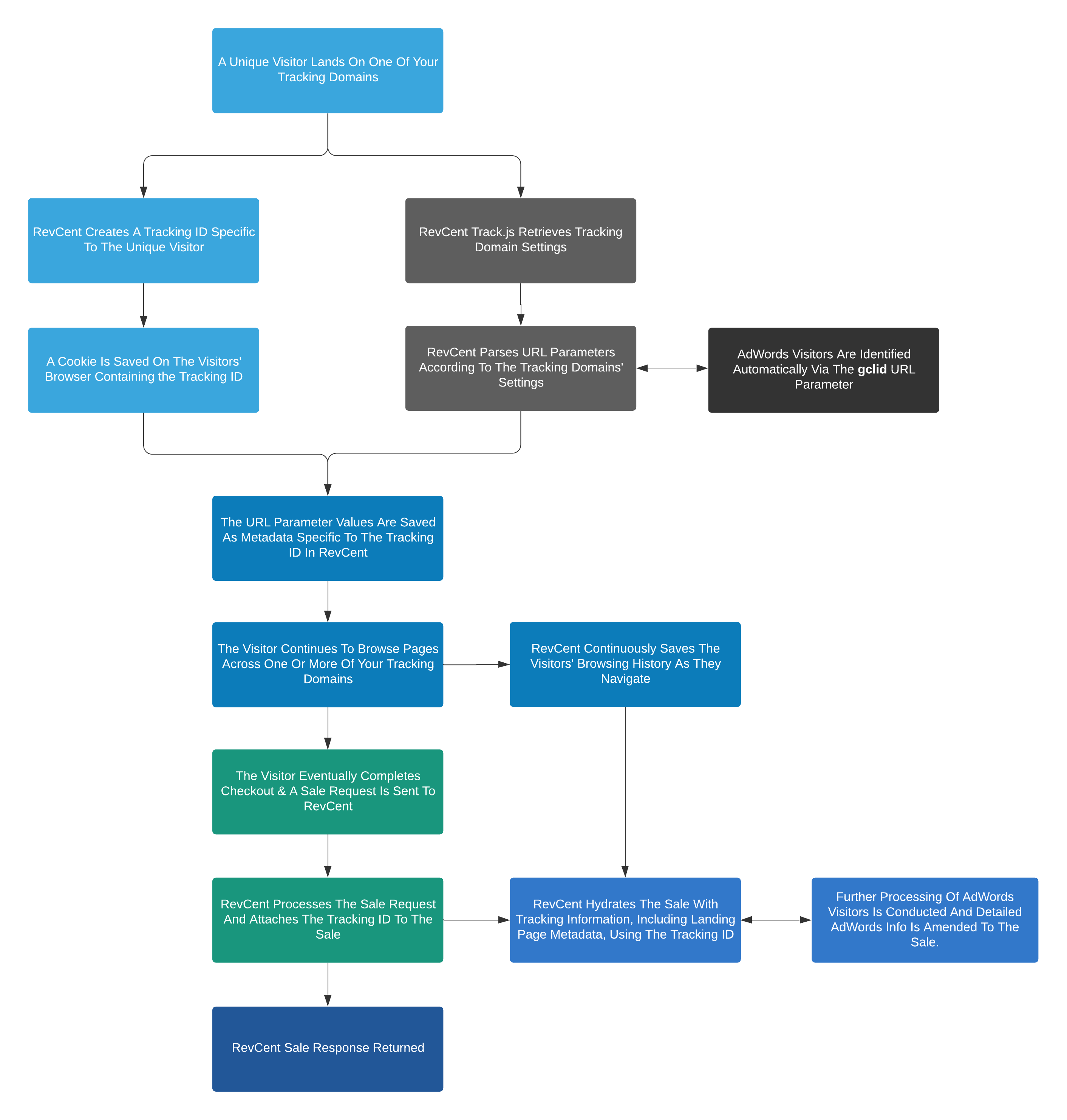
The below diagram shows how RevCent Track.js works with your website visitors, tracking domains, metadata and sales.
Conversion Details
The entire point of conversion tracking is to eventually view conversions on the micro and macro level. RevCent makes it extremely easy to view exactly the type of conversion data you want to see. View a sale, customer, subscription and more for specific conversion information.
Item Details
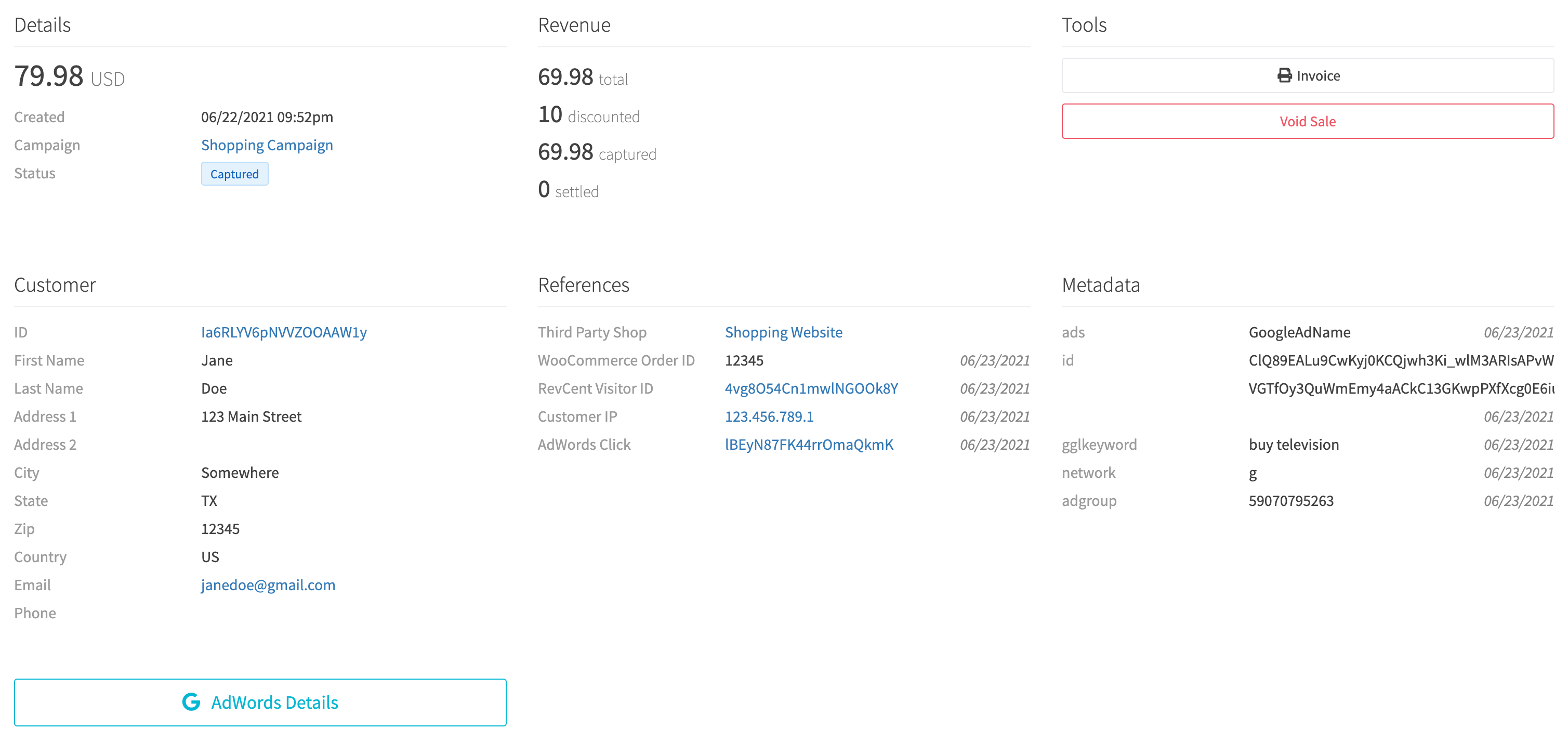
When viewing a sale, customer, subscription, etc. you will also see detailed information related to the item. In the example below we see information for a sale including the amounts, customer, references and metadata. The references and metadata columns contain valuable information related to conversion tracking.
Conversion Data
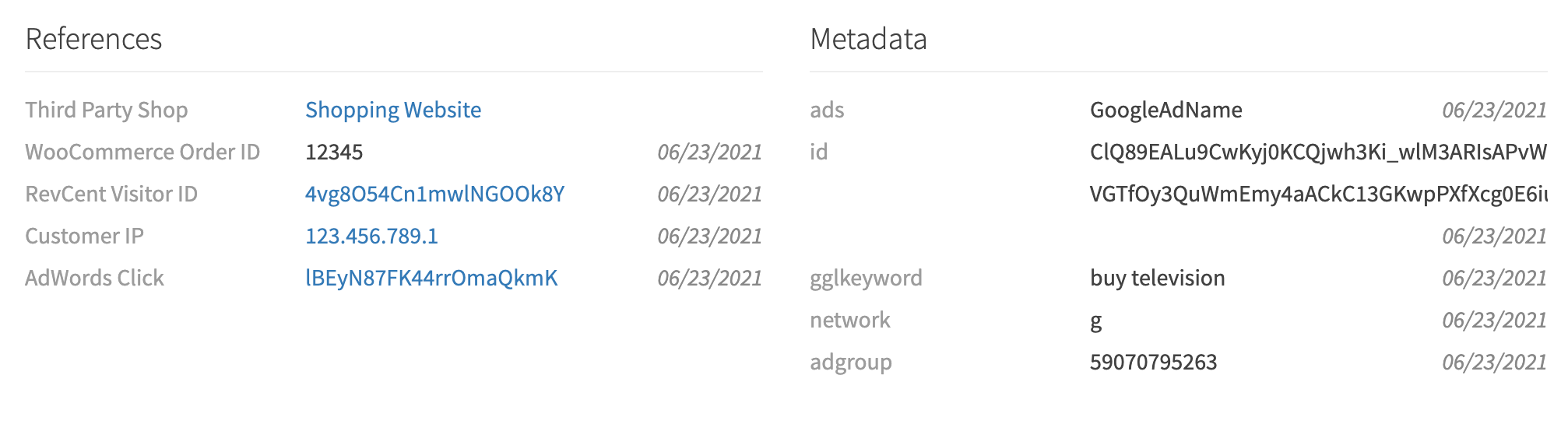
The References card contains the sale’s references and Metadata. The example below shows a landing-page URL and campaign name.
References
The current References card shows Tracking visitor, Shop, and Internal reference when those values are attached to the sale. A dash means the sale has no value for that reference. The example sale has metadata but no attached tracking visitor or shop.
Metadata
The metadata column contains the originating tracking information using Track.js. We amended the landing page URL using several parameters and values specific to the click source.
Amended URL
site.com/shop?ads=GoogleAdName&gglkeyword=buy%20television&network=g&adgroup=59070795263&gclid=ClQ…
In the example URL above, we amended the URL with parameters related to click data. However, you can save any metadata you want by amending the URL. For example, you can amend the URL with an affiliate ID indicating what affiliate the click originated from, or click id to create metadata related to the click.
Metadata Saved
When the user landed on the tracking domain, the amended URL parameters were parsed and saved by RevCent as metadata. The metadata was then attached to the specific sale. Remember to always tell RevCent what URL parameters to save using the URL Parameters setting in your tracking domain.
"metadata": [
  {
    "name": "ads",
    "value": "GoogleAdName"
  },
  {
    "name": "gglkeyword",
    "value": "buy television"
  },
  {
    "name": "network",
    "value": "g"
  },
  {
    "name": "adgroup",
    "value": "59070795253"
  },
  {
    "name": "gclid",
    "value": "ClQ..."
  }
]
Metadata Aggregations
Aggregations are a broad view of data, i.e. total number of sale, net profit, etc. When you properly implement Track.js with URL parameters for your tracking domains, you can gain extremely valuable insight into your conversions. The number of aggregations you can run is virtually limitless.
The current Sales list supports metadata filters. The former customizable dashboard aggregation panels are not available in the current web app.
Metadata Index
All of your metadata is indexed by RevCent. This index enables you to filter and group by metadata names as well as values for reporting. When RevCent receives a metadata entry, it creates the metadata index for the name if it does not already exist and all values are saved with the name. When an additional metadata value is submitted for the same metadata name, the values are grouped together within the index.
Sale 1
"metadata": [
	{
		"name": "source",
		"value": "Google"
	}
]
Metadata Index After Sale 1
"metadata_index": [
  {
    "name": "source",
    "values": [
      "Google"
    ]
  }
]
Sale 1 contained a metadata entry with name as “source” and value as “Google”. If your overall metadata index does not have a “source” entry, then it is created. The values for “source” are saved in the index. Future values for “source” are added to the existing index.
Sale 2
"metadata": [
	{
		"name": "source",
		"value": "Facebook"
	}
]
Sale 2 also contained a metadata entry with name as “source”, but the value is “Facebook”. RevCent will see that “source” already exists in the index, and will add the new value “Facebook” to the “source” index. If a value already exists for a metadata name it wont be added, preventing duplicate values. However, metadata values are case sensitive and only leading and trailing spaces are removed. A value of “Facebook” is not the same as “facebook”.
Metadata Index After Sale 2
"metadata_index": [
  {
    "name": "source",
    "values": [
      "Google",
      "Facebook
    ]
  }
]
Metadata Filtering
Open Revenue > Sales > Initial Sales, then Filters to select metadata names and their indexed values. Choose a date range that includes the sales you want to inspect. The examples below use the current Sales filters.
Filtering By Names then Values
The logic behind filtering is simple. You select the metadata name you wish to filter by, and a list of indexed values for the name are provided. The indexed values were parsed from URL parameters when tracking visitors, or from other sources submitted during requests to RevCent.
|
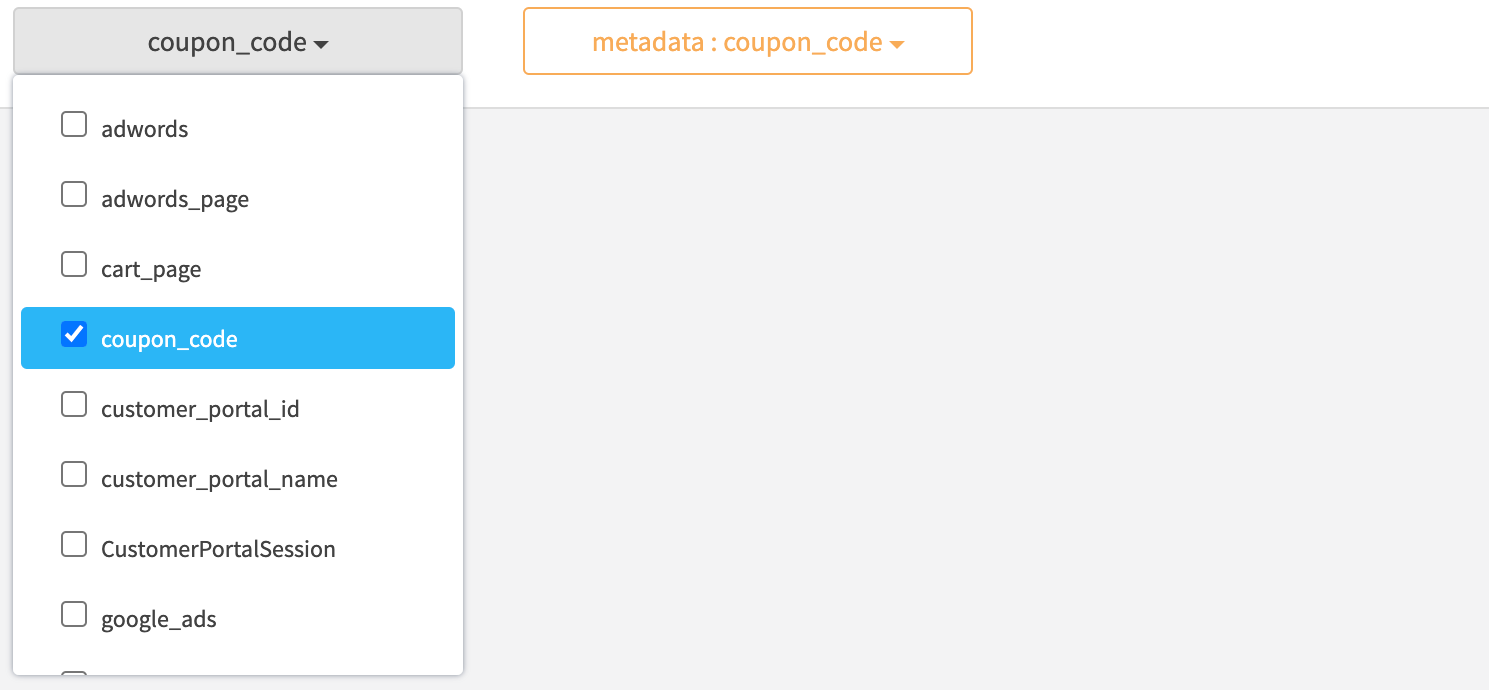
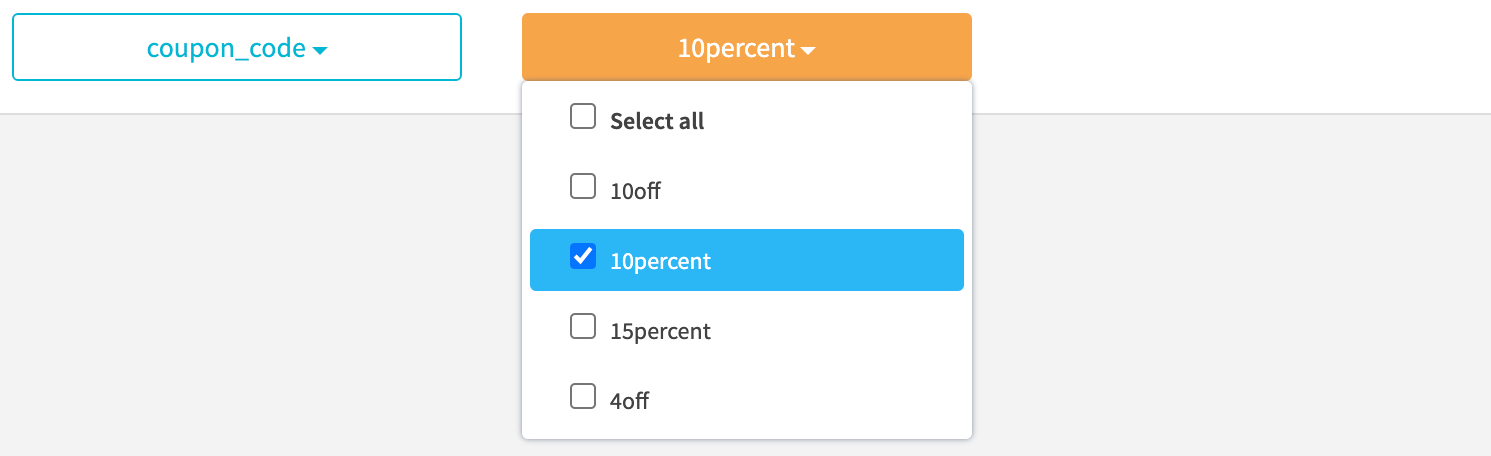
Metadata Name When you click the metadata name dropdown you will see a list of metadata names that RevCent has indexed. In the image we have selected the metadata name "coupon_code", which gives us the ability to filter by values for "coupon_code" that are also indexed. |
|
|
Metadata Value When we click the metadata value dropdown for "coupon_code" you will see a list of metadata values that RevCent indexed. In the image we have selected the metadata value "10percent", which will filter for items which contained the metadata entry:
|
|
|
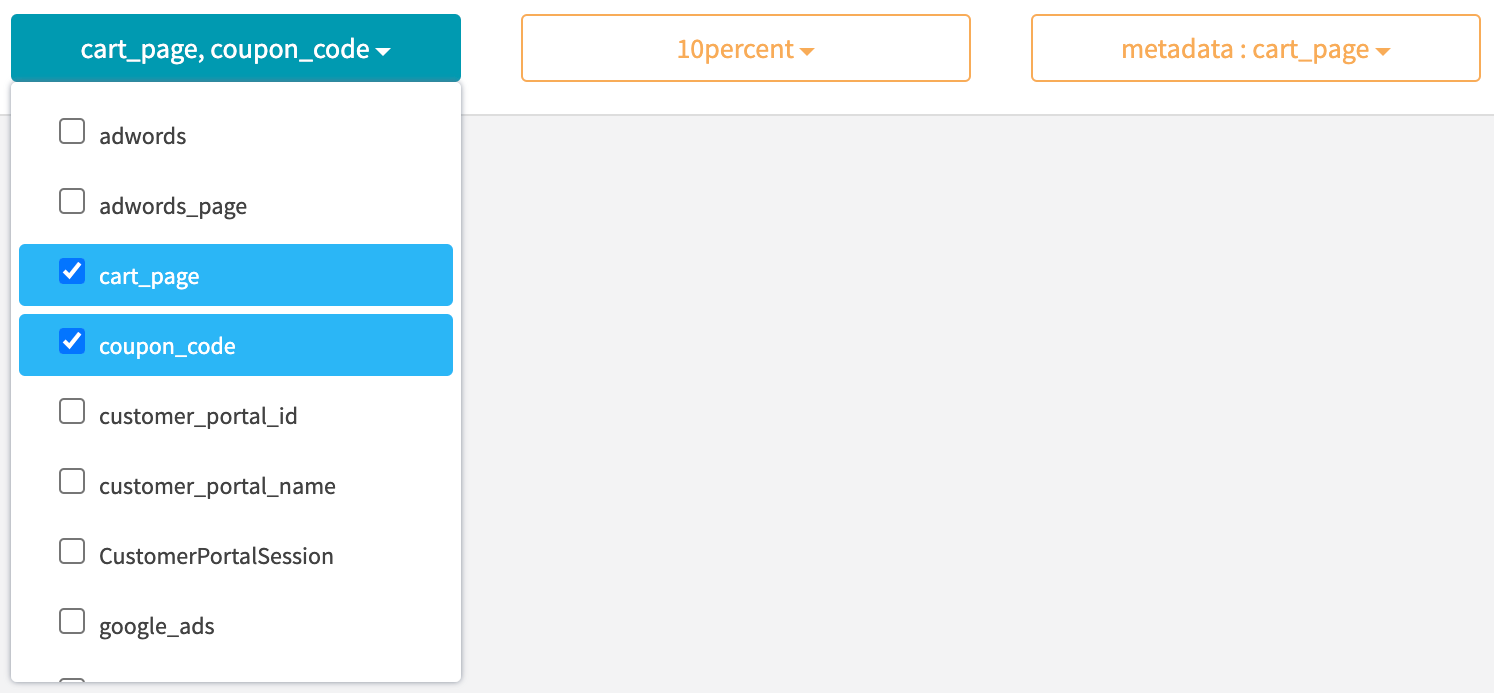
Multiple Metadata Names We also have the ability to add additional metadata names to further refine the filtering. In the image we have also selected the metadata name "cart_page", which gives us the ability to filter by values for "cart_page" as well as "coupon_code". |
|
|
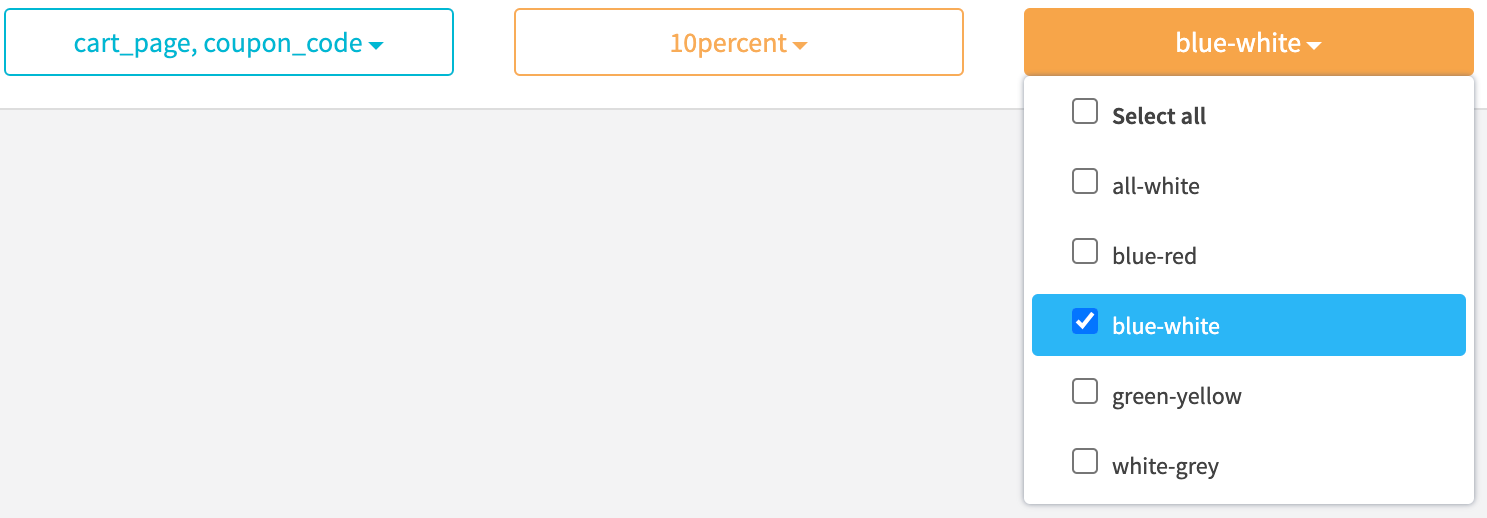
Multiple Metadata Values When we click the second metadata value dropdown for "cart_page" you will see a list of metadata values that RevCent indexed. In the image we have selected the metadata value "blue-white" for name "cart_page". This will filter for items which contained the metadata entries:
|
|
Metadata Grouping
The former customizable dashboard panels and their metadata Group By control are not available in the current web app. The Sales list still supports metadata filtering as shown above. Current reporting pages provide their own filters and fixed summaries.
Panel Settings > Group By
There is no equivalent panel editor in the current reporting UI. Contact RevCent if you need a custom metadata aggregation.
Real World Examples
These are examples of questions that tracking metadata can help answer. The legacy dashboard screenshots have been removed because those panels are not available in the current UI.
Sale Amounts By Metadata
Attach a keyword to the landing-page URL so sales can be associated with their originating keyword.
Sale Profit By Metadata
Attach the advertising campaign name to compare the revenue and costs associated with a campaign.
Renewal Success By Metadata
Retain the original keyword on a subscription so renewal outcomes can be related to the acquisition source.
Sale Amounts By Ad Campaign
Use consistent campaign metadata to associate sales with the ad campaign that brought the visitor to your site.
Sale Profit By Ad Campaign
Compare campaign revenue and costs over a consistent period. A custom metadata aggregation requires a reporting workflow beyond the current fixed report panels.
Renewal Success By Ad Keyword
Retain keyword metadata when tracking subscriptions across renewal cycles. Contact RevCent for help building a report for this analysis.