¶ Account Links
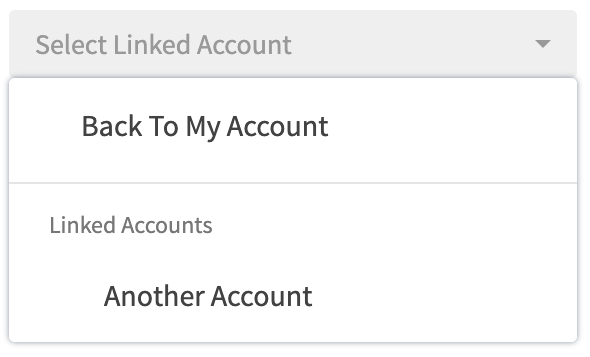
An account link gives two separate RevCent accounts the ability to link together, one being the Manager Account and the other being the Sub Account. This allows advertising campaign managers, developers, third parties and more to manage multiple RevCent accounts from within a single account. Send an invite to a Sub Account, wait for approval and use the account navigation dropdown to toggle between sub accounts.
¶ Why Use An Account Link?
- As a manager: no need for multiple logins, passwords and browsers. One login, multiple accounts.
- As a manager: easily swap between accounts using the account navigation dropdown.
- As a manager: allow employees within your account to manage the sub account as well, with your own internal restrictions.
- As a sub account: no need to create additional user accounts if you want a third party to manage your RevCent account.
- As a sub account: granular permissions using Organizations. Only let the Manager account see what you want them to see.
¶ View Account Links
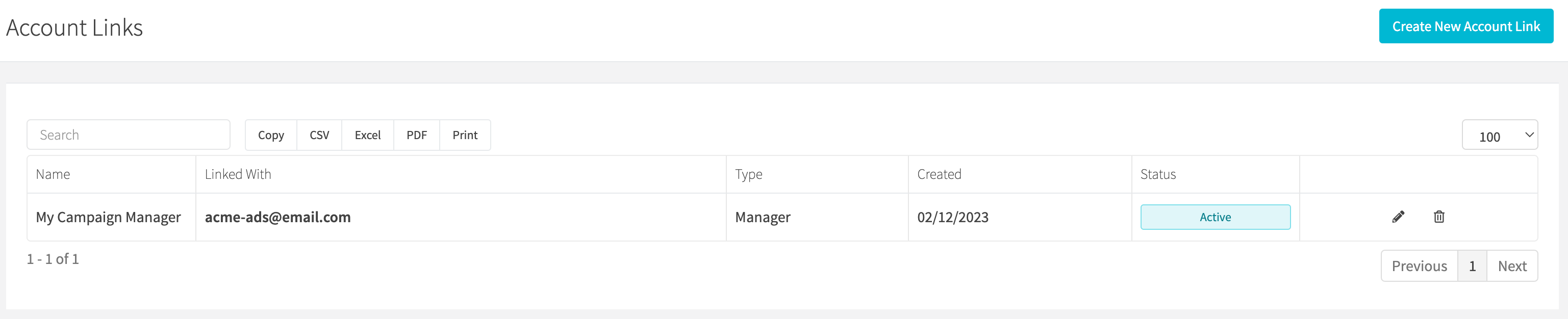
View all account links by clicking the Account > Account Links link on the sidebar, or go to https://revcent.com/user/account-links
¶ Steps To Link Accounts
Link accounts in a few simple steps. The initiator of the link is the account which will manage the other, i.e. Manager Account.
¶ 1. Manager Account: Create an Account Link
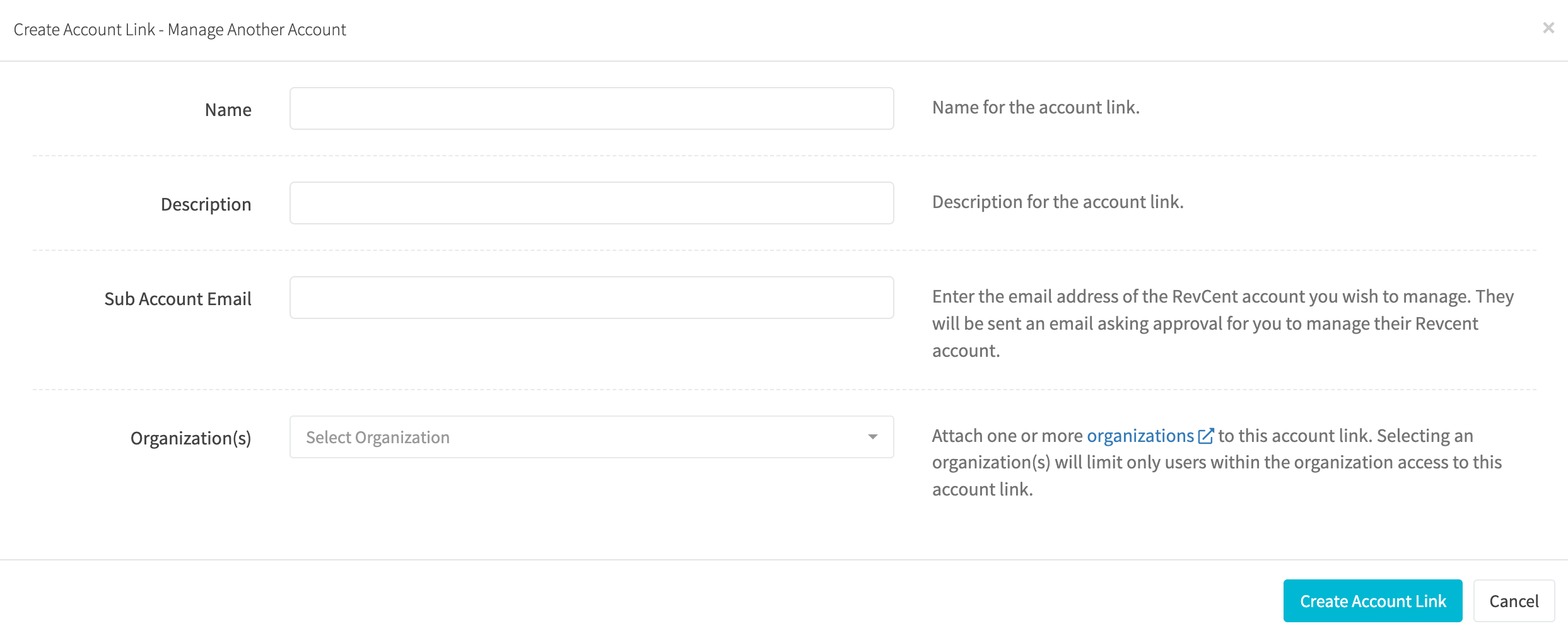
If you plan to manage another RevCent account, you must create a new account link. This will send an invitation to the sub account. The email must match an existing RevCent users' email address. Make sure you enter the correct email of the sub account as too many email mismatches will result in a lockout.
Key Settings:
- Organization(s): Attach one or more organizations to this account link. Selecting an organization(s) will limit only users within the organization(s) access to the specific account link. This is useful if you have multiple users, some of which only need access to a specific external account. Organizations for a manager account in the context of account links are only meant for limiting external account access for users, not entity visibility. Entity visibility is set by the sub account owner and their organization(s).
- Permissions: The permissions for individual users, set within a users' account, apply not only for the default account, but also when accessing an external account. When a user accesses an external account, they permissions you have set for them will restrict external account capabilities.
¶ 2. Sub Account: View Invitation
If you are the sub account and a manager added you, you will receive an email shortly thereafter. Go to your Account Links page and find the Linked With email matching the person you expect to receive an invitation from. Click the orange Click To Approve button to begin accepting the invitation.

¶ 3. Sub Account: Approve Account Link
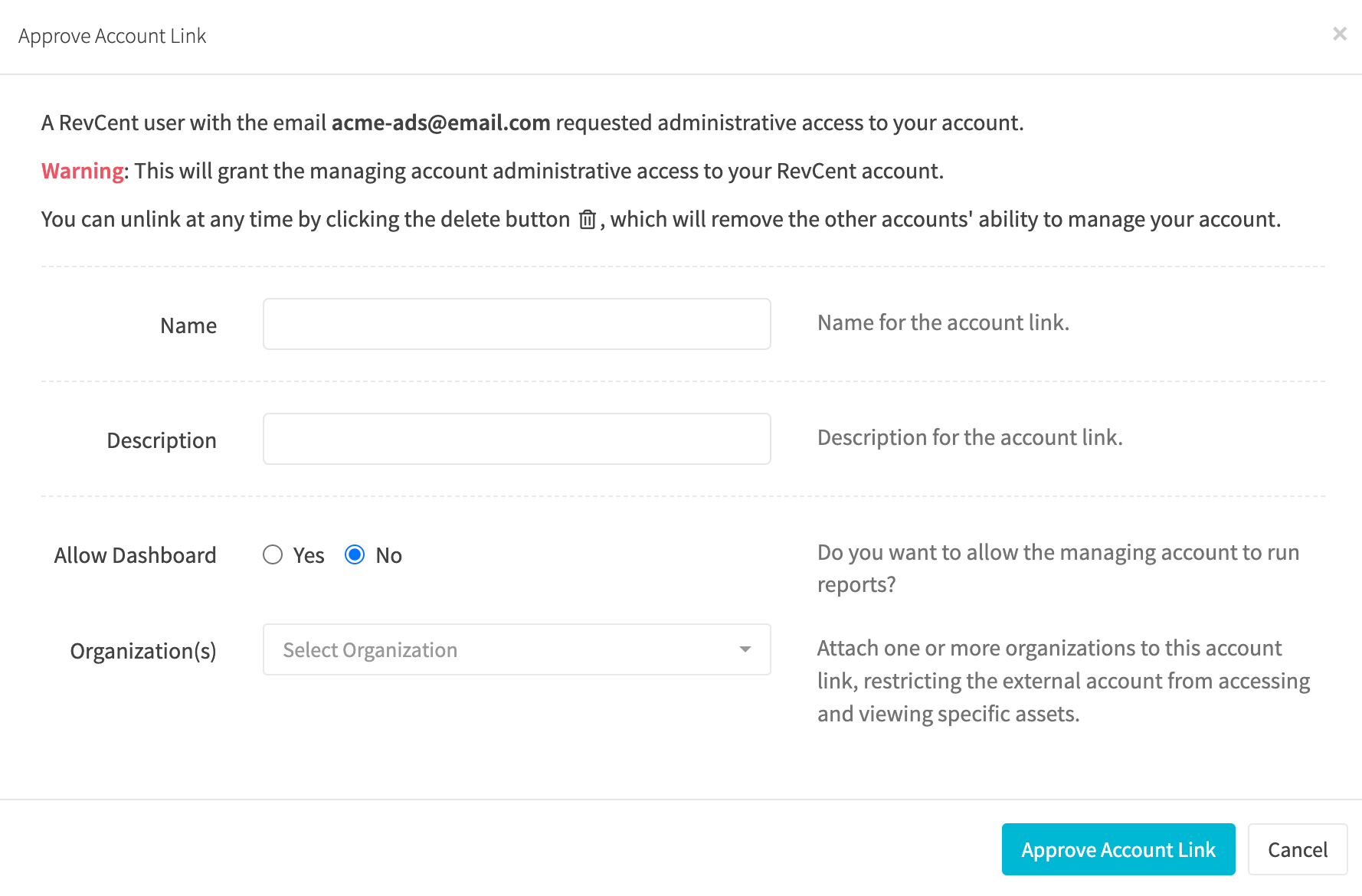
After clicking to approve, a window will appear. We recommend reviewing the settings available, specifically the dashboard and organization options.
Important: By accepting the invitation as a Sub Account you will grant administrative access to another RevCent user. The only thing the Manager cannot do is create or modify an API when managing your account. Do not grant access to unknown parties or accounts you do not trust. Instead, delete the invitation by clicking the trash icon.
Key Settings:
- Allow Dashboard: Do you want to allow the managing account to run reports? This is set to No by default as you may not want the managing account to run reports, even if restricted by Organization settings. Granting another account access to your account means that they can run any type of report they want. Keep that in mind if you wish to enable the dashboard. Organization restrictions still apply when running reports in the dashboard.
- Organization(s): Attach one or more organization(s) to this account link, restricting the manager account from accessing and viewing specific entities. This is highly recommended if you want to separate concerns between managers. Each selected organization(s) settings will be inherited by all users of the managing account, including the manager account owner. Use organization(s) to restrict metadata, campaigns, products and more.
¶ Remove an Account Link
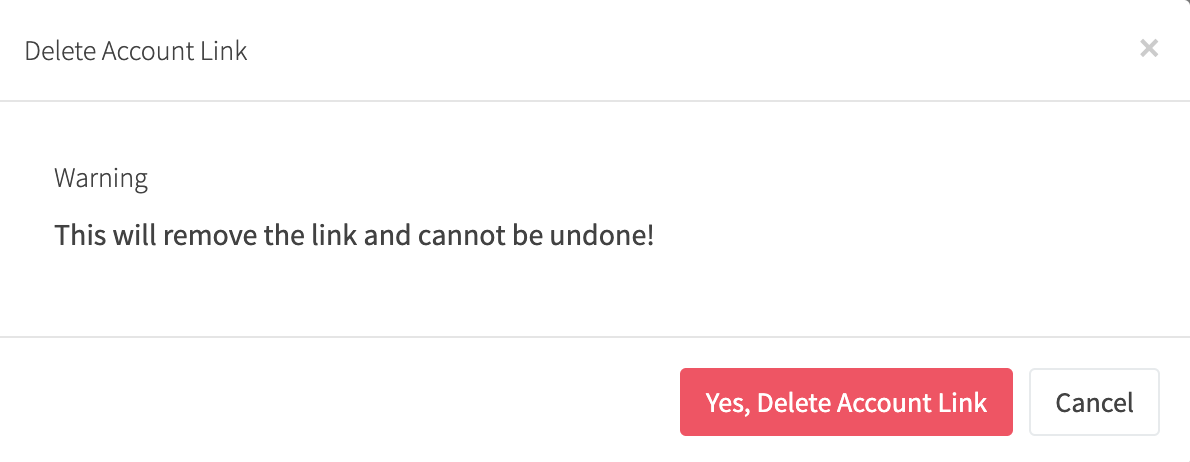
Either party, the Sub Account or Manager can immediately break the account link by clicking the delete (trash icon) button when viewing all Account Links. Deleting an account link will prevent any further access. There is no way to temporarily disable an account link, you can only delete it.